Documentation

Manage the booking lifecycle

Track appointments from intake through completion so your team always knows the current status of every booking.

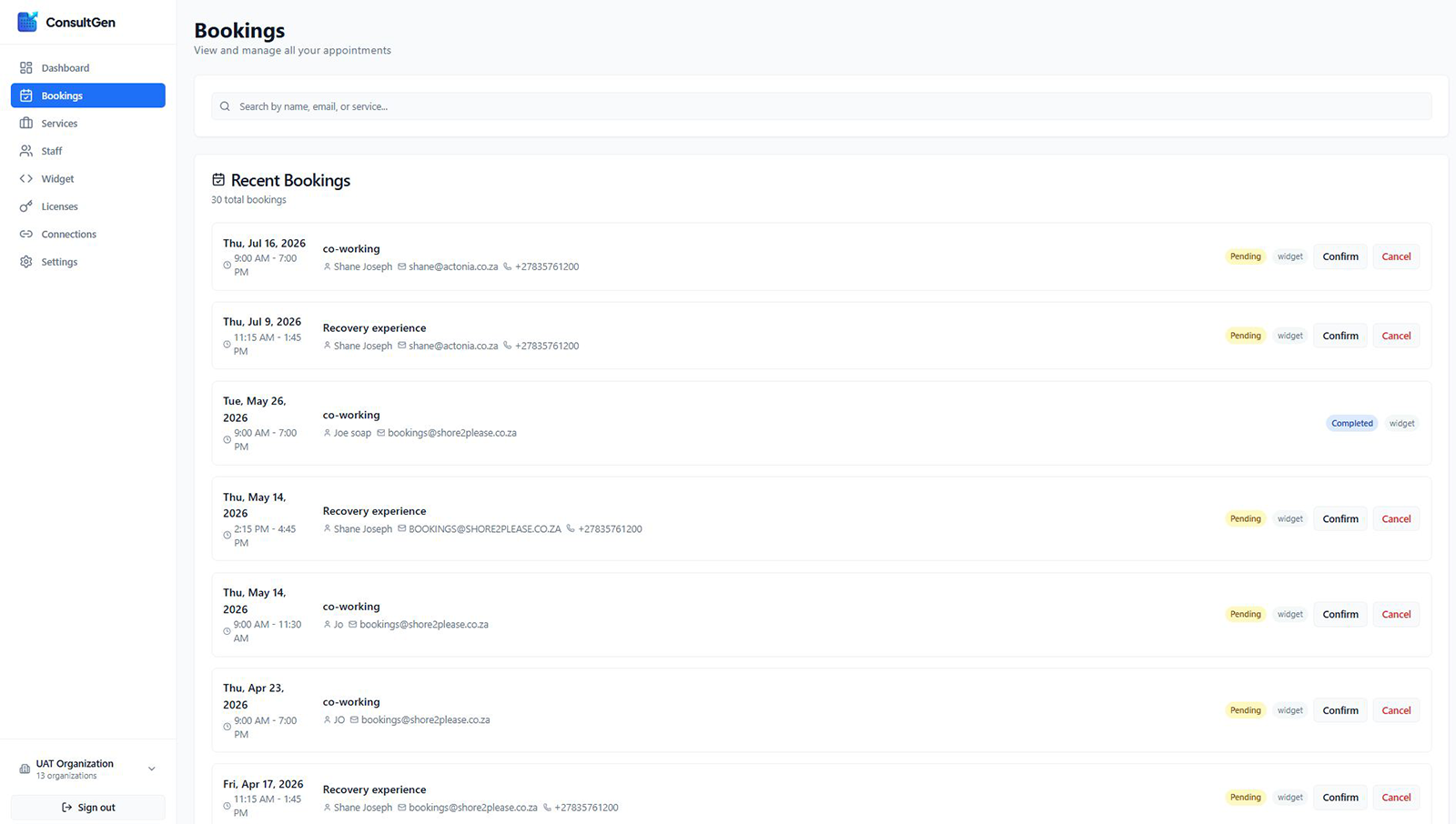
Bookings overview

Use the central bookings screen to review upcoming, in-progress, and historical appointments.

  • Last updated: March 30, 2026
  • Reading time: 2 minutes
  • Difficulty: Beginner
ConsultGen bookings overview

Why This Matters

Your Bookings page is where your appointment scheduling software turns requests into real appointments. If this page is reviewed consistently, your automated booking system stays reliable, clients get faster responses, and your team avoids booking confusion.

For busy service professionals, this means less admin stress and a smoother booking lifecycle. You can quickly identify what needs attention, confirm pending requests, and keep your client experience professional from first booking to final completion.

What You Can Do on This Screen

  1. Search bookings by client name, email, or service
  2. Review all recent bookings in one place
  3. See booking status at a glance
  4. Confirm or cancel pending requests
  5. Track completed appointments

Step 1: Use Search to Find Bookings Faster

At the top of the page, use the search field to locate bookings by:

  • Name
  • Email
  • Service

This is especially useful when your booking volume grows and you need instant access to a specific client or appointment.

Step 2: Read the Recent Bookings Summary

The Recent Bookings area shows:

  • A running total of bookings
  • A row-by-row booking feed
  • Date, time, and service details
  • Client contact details
  • Source tag (for example, widget)

This gives you a single operational view of demand and activity.

Step 3: Prioritize Pending Bookings

Bookings marked Pending need action.
For each pending row, you can:

  • Confirm to approve and proceed
  • Cancel to close it without fulfillment
  • Quick action here helps reduce delays and improves client confidence.

Step 4: Monitor Completed Bookings

Completed rows confirm successful closure of the booking lifecycle.
These entries help you:

  • Verify delivered appointments
  • Keep records accurate
  • Track workload outcomes

Step 5: Build a Daily Booking Routine

Recommended daily process:

  • Check search and recent list first
  • Confirm or cancel all pending requests
  • Review completed records for accuracy
  • Repeat throughout the day to reduce client wait time

Best Practices

  • Keep pending queues as low as possible
  • Confirm quickly during business hours
  • Cancel promptly when unavailable to avoid client uncertainty
  • Use service names consistently so search remains effective

Confirm a booking

Move new appointments into a confirmed state once the request has been reviewed.

  • Last updated: March 31, 2026
  • Reading time: 2 minutes
  • Difficulty: Beginner
ConsultGen confirm booking screen

Why this matters: In any appointment scheduling software, pending bookings are where revenue can be lost or secured. When a client submits a request, they are waiting for a decision. Fast confirmation keeps the booking lifecycle moving from request to approved to completed and paid.

This screen helps you make quick and accurate decisions without jumping across multiple pages.

What you are looking at

Each booking row includes the appointment date and time, service name, customer contact details, status badge, source badge, and action buttons.

  • Status: Pending means the booking still needs your decision.
  • Source: widget means the request came from your public booking widget.
  • Actions: Confirm approves the request, while Cancel declines it.

How to confirm a booking in 5 steps

  1. Verify the booking is pending. Confirm the row status shows Pending before taking action.

  2. Check date and time for conflicts. Make sure the slot is still available and does not overlap existing commitments.

  3. Validate customer details. Confirm name, email, and phone are usable for reminders and follow-up.

  4. Click Confirm. Approve the request directly from the row action button.

  5. Run post-confirm checks. Ensure the appointment appears in your confirmed queue and your reminder flow is active.

When to confirm vs cancel

Confirm when slot, service, and customer details are valid.

Cancel when the request cannot be fulfilled, for example due to time conflicts, invalid details, duplicates, or policy mismatch.

If possible, contact the customer before cancelling so they can rebook an available time.

What happens after you confirm

  1. Status update: Pending to Confirmed.
  2. Operational visibility: Booking appears in confirmed/upcoming workflows.
  3. Communication flow: Reminder and prep notifications can run.
  4. Lifecycle continuity: Appointment can later be completed and reported correctly.

Common questions

Why do pending bookings build up? Usually approvals are not processed quickly enough, or notifications are not enabled for staff.

Should all bookings be auto-confirmed? Only if your workflow is low-risk and schedule sync is reliable. Manual confirmation is safer for conflict-heavy teams.

What does the widget badge mean? The booking request was submitted via the public-facing widget.

Complete a booking

Advance the booking after the appointment has been delivered.

  • Last updated: March 31, 2026
  • Reading time: 3 minutes
  • Difficulty: Beginner
ConsultGen complete booking action

Why this matters: Marking a booking as completed is the final step of the active booking lifecycle in your appointment scheduling software. Without it, bookings stay confirmed indefinitely, which distorts your reporting, revenue figures, and success rate metrics. A clean completed status tells you which sessions have been delivered and how efficiently your booking lifecycle is moving from request to delivery.

What you are looking at

When a booking is in Confirmed state, the row shows the appointment date and time, service name, customer details, status and source badges, and action buttons.

  • Status: Confirmed — appointment is approved and active.
  • Source: widget — request came via the public booking widget.
  • Complete — closes the booking as delivered.
  • Cancel — voids the appointment. Do not use this to close delivered sessions.

How to complete a booking in 4 steps

  1. Locate the confirmed booking. Find the row in your confirmed queue and verify the date, time, and service are correct.

  2. Confirm the service was delivered. Verify the appointment end time has passed and the client attended or the service was rendered.

  3. Click Complete. Select Complete from the action buttons on the booking row. The status moves from Confirmed to Completed and the completed_at timestamp is written.

  4. Verify the booking moved to completed. It should no longer appear in the active confirmed queue and should be visible in historical views. Revenue and success rate metrics update to include the session.

Manual vs automatic completion

ConsultGen supports both paths.

  • Automatic: runs up to 10 minutes after the appointment end time, for confirmed bookings that are not cancelled or rescheduled.
  • Manual: staff clicks Complete at any point while the booking is still confirmed.

Use manual completion when you want to close early, get accurate reporting immediately, or if the scheduled job is not active in your environment.

What happens after completion

  1. Status update: Confirmed to Completed.
  2. Timestamp written: completed_at is recorded.
  3. Reporting inclusion: counts toward completed sessions in dashboard analytics.
  4. Success rate update: completed bookings improve your conversion metric.
  5. Revenue recognition: session is included in confirmed revenue figures.

Common questions

Can I undo a completion? Not from the standard UI. Contact your administrator to correct the status if needed.

What if auto-complete already ran? The outcome is the same. The Complete button is not shown once the booking is already completed.

What is the difference between Complete and Cancel? Complete means the service was delivered. Cancel means the appointment did not happen. Never use Cancel to close a finished session.

Why does my revenue not update after completion? Check the dashboard date range filter — it may not include the booking date.

Review completed bookings

Verify how finished appointments appear after they are marked done.

  • Last updated: March 31, 2026
  • Reading time: 3 minutes
  • Difficulty: Beginner
ConsultGen completed booking view

Why this matters: Completed bookings are the proof that your appointment scheduling software is working end-to-end. They represent delivered sessions, satisfied clients, and closed revenue. Reviewing completed bookings helps you verify your booking lifecycle is running correctly, audit your service history, and ensure reporting reflects real business activity.

What you are looking at

A completed booking row is a read-only record. There are no action buttons because the appointment has been fully processed and closed.

  • Date and time — the original appointment window (e.g. 9:00 AM – 7:00 PM).
  • Service name — what was delivered (e.g. co-working).
  • Customer details — name, email, and phone for the client who attended.
  • Status: Completed — the session has been delivered and the booking is closed.
  • Source: widget — the original request came via the public booking widget.
  • No action buttons — completed bookings cannot be actioned from the standard UI.

How completed bookings are created

A booking reaches Completed status through one of two paths:

  • Automatic: the system checks every 10 minutes for confirmed bookings whose end time has passed, and marks them completed automatically.
  • Manual: a staff member clicked the Complete button while the booking was still in Confirmed state.

Either way, the completed_at timestamp is recorded and the booking moves out of the active confirmed queue.

What to verify when reviewing completed bookings

  1. Check the date and time are correct. Confirm the original appointment window matches your records. If the times look wrong, your timezone setting may need adjustment in Settings.

  2. Verify the service name. Confirm the right service was booked and delivered. Mismatches may indicate a booking was created against the wrong service.

  3. Confirm customer details. Name, email, and phone should match the client you served. If contact details are missing, consider making them required fields in your booking widget settings.

  4. Cross-reference with revenue reporting. Completed bookings should appear in your revenue and success rate metrics on the dashboard. If they do not, check the dashboard date range filter.

Common questions

Can I reopen or edit a completed booking? Not from the standard UI. Contact your administrator if a correction is needed.

Why does a booking show Completed but not appear in revenue? Check that the dashboard date range covers the booking date. Revenue metrics filter by the selected period.

What is the difference between Completed and Cancelled? Completed means the service was delivered. Cancelled means the appointment did not happen. Only Completed bookings contribute to your delivered session count and revenue.

How do I find all completed bookings for a date range? Use the status filter in the Bookings screen to show only Completed records, then set the date range to the period you want to review.

Review cancelled bookings

See how cancellations are represented so you can follow up or reopen slots when needed.

  • Last updated: March 31, 2026
  • Reading time: 3 minutes
  • Difficulty: Beginner
ConsultGen cancelled booking view

Why this matters: Cancelled bookings are a normal part of any appointment scheduling software, but reviewing them helps you understand drop-off patterns, protect your success rate, and identify whether clients need an easier path to reschedule. A booking that could have been rescheduled but was cancelled instead is a missed revenue opportunity.

What you are looking at

A cancelled booking row is a read-only record. There are no action buttons because the appointment has been voided.

  • Date and time — the original appointment window (e.g. 11:15 AM – 1:45 PM).
  • Service name — what was originally booked (e.g. Recovery experience).
  • Customer details — name, email, and phone of the client who requested the appointment.
  • Status: Cancelled — the booking was voided and will not be delivered.
  • Source: widget — the original request came via the public booking widget.
  • No action buttons — cancelled bookings cannot be reopened or modified from the standard UI.

How bookings get cancelled

A booking moves to Cancelled status when a staff member manually clicks the Cancel button from either the Pending or Confirmed booking row. Cancellations are not triggered automatically by the system.

Common reasons for cancellation:

  • Requested time slot was no longer available.
  • Duplicate or test booking.
  • Invalid or unreachable customer contact details.
  • Customer requested cancellation and staff actioned it.
  • The booking violated a service or availability policy.

What to check when reviewing cancelled bookings

  1. Identify the pattern. If the same service or time slot is frequently cancelled, there may be a scheduling conflict, a misconfigured availability rule, or a widget issue causing invalid slots to appear.

  2. Check if the client was contacted. Best practice is to notify the client before or at the time of cancellation so they can rebook. Review your notification settings if outreach is not happening automatically.

  3. Track impact on success rate. Cancellations reduce your booking success rate on the dashboard. A high cancellation rate relative to total bookings signals a problem in your booking lifecycle that needs attention.

  4. Consider whether it should have been a reschedule. If the client still needed the service, a reschedule keeps them in your pipeline rather than losing them entirely to a cancellation record.

Cancellations vs completions

Cancelled means the appointment did not happen and the booking is void. It does not count toward delivered sessions or revenue.

Completed means the service was delivered and the booking is closed positively. It counts toward your success rate and revenue metrics.

Do not use Cancel to close out a session that was delivered. Use Complete instead.

Common questions

Can I reopen a cancelled booking? Not from the standard UI. If a cancellation was made in error, the client will need to submit a new booking request.

Do cancelled bookings affect revenue? No. Cancelled bookings are excluded from revenue calculations. However, they do reduce your overall success rate metric.

How do I find all cancellations for a period? Use the status filter in the Bookings screen to show only Cancelled records, then set your date range accordingly.

Should I notify clients when I cancel their booking? Yes. Always notify the client at the point of cancellation and offer a path to rebook. This reduces churn and maintains trust in your booking experience.

Back to Core Features