Add-ons

Extend ConsultGen with optional add-ons as your workflow grows.

Learn how to activate and configure ConsultGen add-ons and booking features, including staff management, calendars, payments, coupons, and more.

Add-on

WhatsApp Notifications

Activate and configure WhatsApp notifications for client confirmations and admin alerts.

WhatsApp add-on overview

Activate the WhatsApp Notifications add-on from the Add-on Overview screen and open the configuration panel.

  • Last updated: March 31, 2026
  • Reading time: 2 minutes
  • Difficulty: Beginner
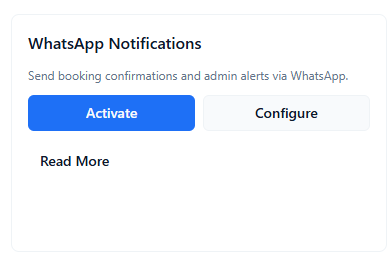
ConsultGen WhatsApp add-on overview with Activate and Configure buttons

Why this matters: The WhatsApp Notifications add-on gives your appointment scheduling software a faster communication channel for both customers and staff. Instead of relying only on email, your booking lifecycle can send WhatsApp updates where clients are more likely to see them quickly.

From this screen, you control whether the add-on is active and whether your team can access configuration settings.

What you are looking at

The Add-on Overview card for WhatsApp Notifications contains:

  • Activate button — turns the add-on on for the organization.
  • Configure button — opens the settings panel where Twilio credentials, toggles, and templates are managed.
  • Read More link — opens the detailed tutorial/documentation for this add-on.

How to activate WhatsApp Notifications

  1. Open Add-on Overview. Navigate to Settings and locate the WhatsApp Notifications card.
  2. Click Activate. This enables the add-on at account level so WhatsApp logic can run in the booking flow.
  3. Click Configure. Move directly to the configuration card to set sender credentials, toggles, and templates.

What activation does and does not do

  • Activation enables the feature framework.
  • Activation alone is not enough to send messages. You still need valid Twilio credentials and sender settings in the configuration card.
  • Templates and toggles still control behavior. You decide whether admin alerts and client confirmations are sent.

Common questions

Can I activate now and configure later? Yes. Activation can happen first, but no WhatsApp messages should be expected until credentials and templates are configured correctly.

Who should configure this add-on? An admin user with access to your Twilio account and notification policy decisions.

Configure WhatsApp notifications

Set Twilio account details, sender number, alert targets, and templates to deliver booking updates over WhatsApp.

  • Last updated: March 31, 2026
  • Reading time: 2 minutes
  • Difficulty: Beginner
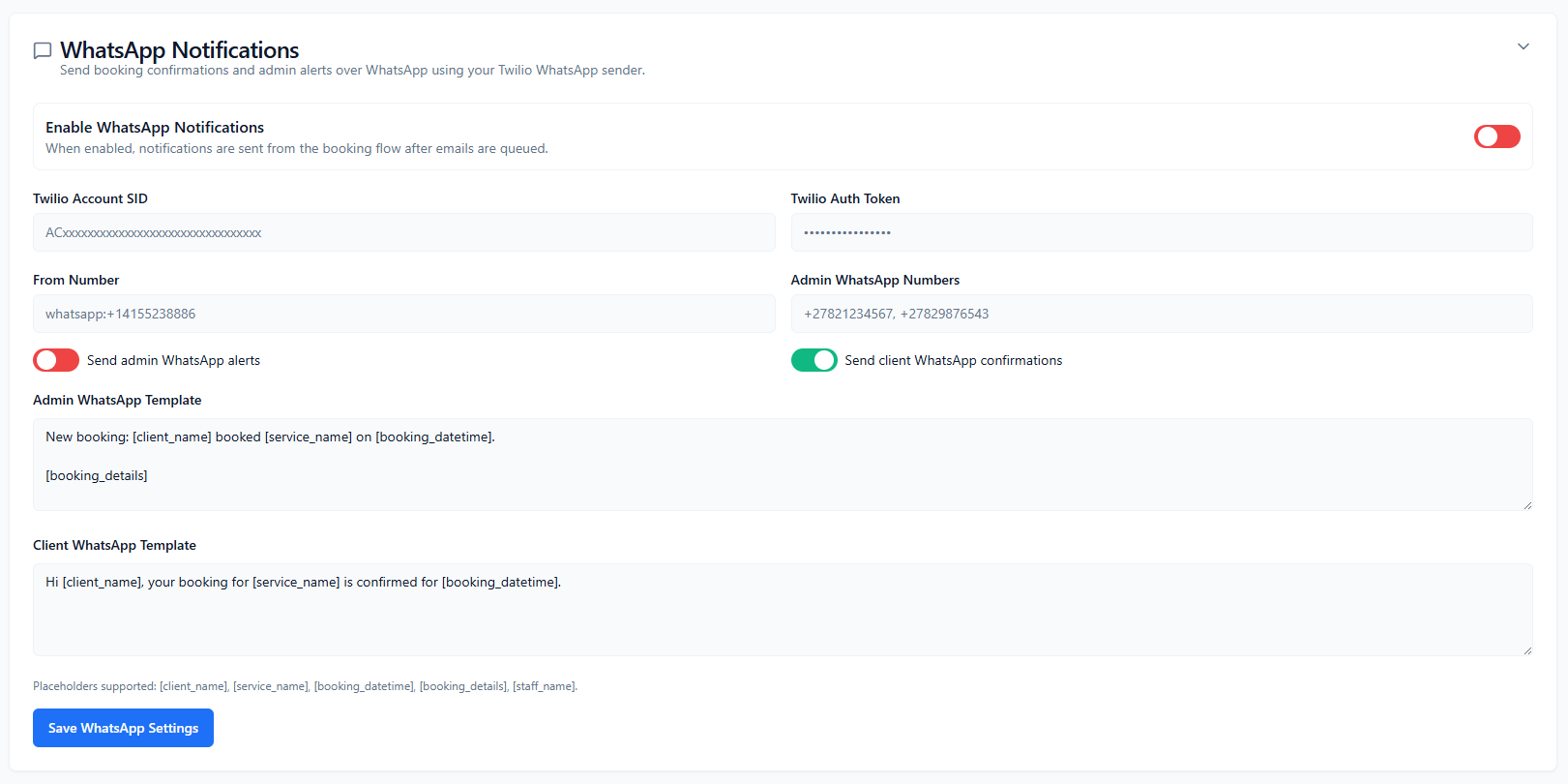
ConsultGen WhatsApp configuration card with Twilio credentials, toggles, and templates

Why this matters: This configuration card controls exactly how WhatsApp messages are sent in your booking lifecycle. Correct setup improves delivery speed and customer experience; incorrect setup can silently block important notifications.

Billing note: Twilio usage is charged separately by Twilio. ConsultGen does not include Twilio message fees in your plan.

Configuration fields and controls

The WhatsApp configuration card contains the following controls:

  • Enable WhatsApp Notifications toggle — global on/off for WhatsApp message delivery.
  • Twilio Account SID — required credential from your Twilio account.
  • Twilio Auth Token — required secure token for Twilio API access.
  • From Number — your approved Twilio WhatsApp sender (format like whatsapp:+14155238886).
  • Admin WhatsApp Numbers — comma-separated recipients for admin alerts.
  • Send admin WhatsApp alerts toggle — enables/disables admin alert sends.
  • Send client WhatsApp confirmations toggle — enables/disables customer confirmation sends.
  • Admin WhatsApp Template — message format for staff/admin notifications.
  • Client WhatsApp Template — message format for customer confirmations.
  • Save WhatsApp Settings button — persists your configuration.

Supported placeholders shown in the UI include:

  • [client_name]
  • [service_name]
  • [booking_datetime]
  • [booking_details]
  • [staff_name]

How to configure the WhatsApp add-on

  1. Enable the add-on toggle. Turn on Enable WhatsApp Notifications.
  2. Enter Twilio credentials. Paste Account SID and Auth Token exactly from Twilio.
  3. Set sender number. Enter a Twilio-approved WhatsApp sender in full WhatsApp format.
  4. Set recipients and toggles. Add admin recipient numbers, then decide whether admin alerts and client confirmations are enabled.
  5. Customize templates. Use placeholders to create consistent, context-rich messages.
  6. Save settings. Click Save WhatsApp Settings to apply configuration.

Template best practices

  • Keep opening lines short and clear.
  • Always include service and datetime placeholders for context.
  • Avoid overloading messages with internal detail.
  • Use different wording for admin vs client templates.

Troubleshooting checklist

  • Validate Twilio SID/token are correct and active.
  • Ensure sender number is WhatsApp-enabled in Twilio.
  • Confirm recipient numbers use valid international format.
  • Check the global enable toggle and per-channel toggles are on.
  • Save settings after every edit before retesting.

Common questions

Can I send only client messages and disable admin alerts? Yes. Keep client confirmations enabled and turn off admin alerts.

Why are no WhatsApp messages sending? Most cases are due to invalid Twilio credentials, incorrect sender format, disabled toggles, or unsaved changes.

Add-on

PayFast

Configure PayFast checkout for card and instant EFT payments in the booking widget.

PayFast add-on overview

Activate or deactivate PayFast, open configuration, and access supporting docs from Add-on Overview.

  • Last updated: March 31, 2026
  • Reading time: 2 minutes
  • Difficulty: Beginner
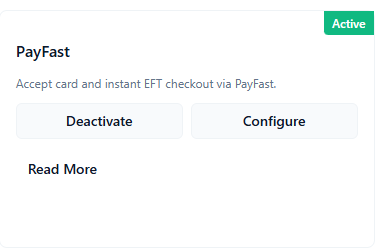
ConsultGen PayFast add-on overview card with Active status and Configure action

Why this matters: PayFast gives your booking widget an integrated payment option so clients can pay during checkout instead of paying later manually. In your booking lifecycle, faster payment capture usually means fewer drop-offs and fewer unpaid bookings.

Important: PayFast is a separate payment provider. You need your own PayFast merchant account, and PayFast transaction fees are billed by PayFast, not included in ConsultGen subscription pricing.

What you are looking at

The PayFast add-on card in Add-on Overview includes:

  • Active badge — indicates PayFast is currently enabled for the organization.
  • Deactivate button — disables PayFast checkout in the widget.
  • Configure button — opens the full PayFast settings card.
  • Read More link — opens the detailed tutorial content for this add-on.

How to activate PayFast

  1. Open Add-on Overview. Navigate to Settings and locate the PayFast card.
  2. Activate (if inactive). If not already active, click Activate to enable PayFast for your booking flow.
  3. Open Configure. Click Configure to enter merchant credentials and mode settings.

When to deactivate PayFast

  • You are rotating merchant credentials and need a temporary hold.
  • You want to switch checkout providers for a period.
  • You are troubleshooting payment failures and want to prevent new PayFast checkout attempts.

Deactivation removes PayFast as a checkout option in the widget until it is re-enabled.

Common questions

Can I keep PayFast active while editing settings? Yes, but if credentials are incorrect, checkout attempts may fail. Save changes carefully and run a test booking after updates.

Does activation automatically verify my merchant credentials? No. Activation enables the feature path; valid checkout still depends on correct merchant setup in the configuration card.

Configure PayFast checkout

Set mode and merchant credentials for PayFast card and instant EFT widget checkout.

  • Last updated: March 31, 2026
  • Reading time: 2 minutes
  • Difficulty: Beginner
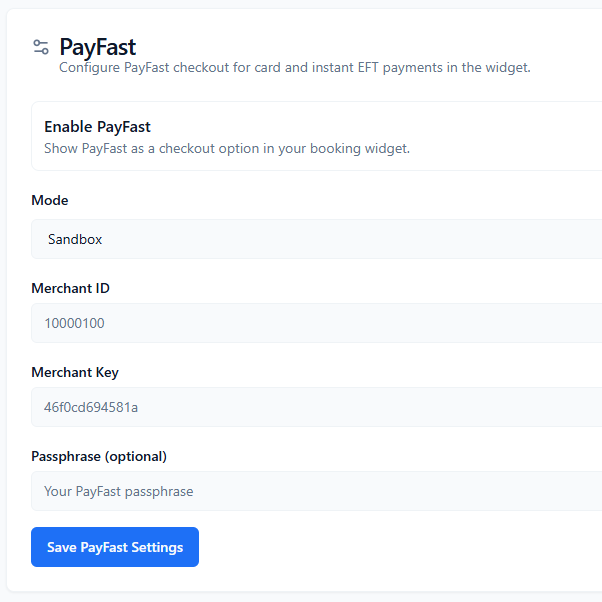
ConsultGen PayFast configuration card with mode, merchant ID, key, passphrase, and save action

Why this matters: The PayFast configuration card controls whether your booking widget can process card and instant EFT payments successfully. Correct credentials and mode selection are critical; a mismatch can cause checkout failures and lost bookings.

Billing note: PayFast merchant fees and transaction charges are managed by PayFast and are separate from your ConsultGen subscription.

Configuration fields and controls

  • Enable PayFast toggle — turns PayFast checkout on or off in the booking widget.
  • Mode — chooses environment (typically Sandbox for testing, Live for production).
  • Merchant ID — PayFast merchant identifier.
  • Merchant Key — PayFast merchant key tied to your account.
  • Passphrase (optional) — optional signing value for added request integrity.
  • Save PayFast Settings — persists your current configuration.

How to configure PayFast

  1. Enable PayFast. Turn on the Enable PayFast toggle.
  2. Select mode. Use Sandbox while testing and switch to Live only when production credentials are ready.
  3. Enter Merchant ID and Merchant Key. Copy these exactly from your PayFast account to avoid authentication errors.
  4. Set passphrase if used. If your PayFast account is configured with a passphrase, enter the same value here.
  5. Save settings. Click Save PayFast Settings to apply changes.
  6. Run a test booking. Validate that checkout opens and returns the expected payment outcome before full rollout.

Sandbox vs Live guidance

  • Sandbox: for internal testing, QA flows, and validating callbacks before launch.
  • Live: for real customer payments only after credentials, URLs, and reconciliation checks are verified.

Do not use Live mode during initial setup unless you are ready to process actual transactions.

Troubleshooting checklist

  • Confirm mode matches the credential set you entered.
  • Recheck Merchant ID and Merchant Key for whitespace or copy/paste errors.
  • Ensure passphrase value matches PayFast account settings exactly (if enabled).
  • Verify Save was clicked after any changes.
  • Run a fresh test booking after each credential update.

Common questions

Can I leave passphrase empty? Yes, if your PayFast account does not require one. If passphrase is enabled on PayFast, it must match exactly here.

When should I switch from Sandbox to Live? Only after successful end-to-end tests in Sandbox and once your production merchant credentials are confirmed.

Why is checkout failing even though PayFast is enabled? Usually this is due to incorrect credentials, mode mismatch, or unsaved changes.

Add-on

Paystack

Configure Paystack checkout for cards, bank transfer, USSD, and mobile payments in the booking widget.

Paystack add-on overview

Activate or deactivate Paystack, open configuration, and access supporting docs from Add-on Overview.

  • Last updated: March 31, 2026
  • Reading time: 2 minutes
  • Difficulty: Beginner
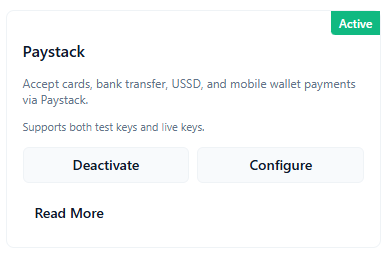
ConsultGen Paystack add-on overview card with Active status and Configure action

Why this matters: Paystack gives your booking widget broad local payment coverage — cards, bank transfer, USSD, and mobile wallet — so clients can pay during checkout using whichever method they prefer. In your booking lifecycle, giving clients more payment options at the point of booking reduces drop-offs and shortens the time between enquiry and confirmed, paid appointment.

Important: Paystack is a separate payment provider. You need your own Paystack account, and Paystack transaction fees are charged by Paystack directly and are not included in your ConsultGen subscription.

What you are looking at

The Paystack add-on card in Add-on Overview includes:

  • Active badge — indicates Paystack is currently enabled for the organisation.
  • Deactivate button — removes Paystack as a checkout option in the booking widget.
  • Configure button — opens the full Paystack settings card where you enter API keys and review the webhook URL.
  • Read More link — opens the detailed tutorial for this add-on.

The card also shows the supported payment methods: cards, bank transfer, USSD, and mobile wallet. It also notes that Paystack supports both test keys and live keys, letting you validate checkout in sandbox before going live.

How to activate Paystack

  1. Open Add-on Overview. Navigate to Settings and locate the Paystack card.
  2. Activate (if inactive). If the card shows Activate, click it to enable Paystack for your booking flow.
  3. Open Configure. Click Configure to enter API keys and register the webhook before accepting live payments.

When to deactivate Paystack

  • You are rotating API keys and want to pause checkout while credentials are being updated.
  • You are switching payment providers temporarily.
  • You are investigating failed transactions and want to prevent new checkout attempts until resolved.

Deactivation removes Paystack from the widget checkout options immediately. No existing bookings are affected, and reactivation restores the checkout path once credentials are confirmed.

Common questions

Can I keep Paystack active while updating API keys? Yes, but any in-progress checkouts during the key rotation could fail. Save changes and test before resuming live traffic.

Does activation verify my API keys? No. Activation enables the feature path; the API keys and webhook must still be correctly configured for checkout to succeed.

Does Paystack support test mode? Yes. Paystack issues separate test key sets (prefixed pk_test_ and sk_test_) and live key sets (pk_live_ and sk_live_). Enter test keys during setup and switch to live keys only when ready for real transactions.

Configure Paystack checkout

Enter your Public Key and Secret Key, register the webhook URL, and save to enable card, bank transfer, USSD, and mobile wallet checkout.

  • Last updated: March 31, 2026
  • Reading time: 4 minutes
  • Difficulty: Beginner
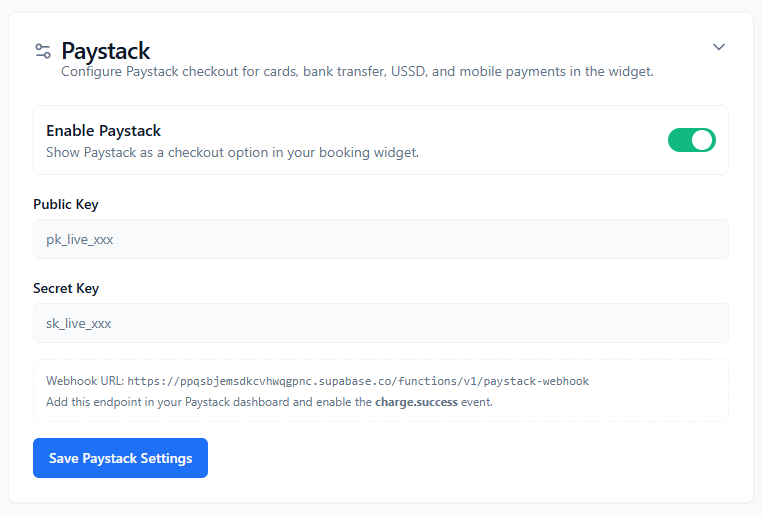
ConsultGen Paystack configuration card with Public Key, Secret Key, webhook URL, and Save action

Why this matters: The Paystack configuration card connects your ConsultGen booking widget to your Paystack account. Without valid API keys and a registered webhook, checkout will not process and successful payments will not be reflected back in your booking system.

Billing note: Paystack transaction fees are charged by Paystack and are not included in your ConsultGen subscription. Review Paystack's current pricing in your Paystack dashboard.

Configuration fields and controls

  • Enable Paystack toggle — turns Paystack checkout on or off in the booking widget. Must be enabled for the payment option to appear during booking.
  • Public Key — your Paystack-issued public API key. Used client-side to initialise the payment popup. Prefixed pk_test_ for test mode or pk_live_ for live mode.
  • Secret Key — your Paystack-issued secret API key. Used server-side to verify transactions. Prefixed sk_test_ for test mode or sk_live_ for live mode. Treat this value as a password — do not share it publicly.
  • Webhook URL — a read-only URL shown in the card. Copy this and register it in your Paystack dashboard to receive payment event notifications.
  • Save Paystack Settings — persists your current configuration.

How to configure Paystack

  1. Enable Paystack. Turn on the Enable Paystack toggle so the payment option appears in the widget.
  2. Enter your Public Key. Copy the Public Key from your Paystack dashboard (Settings → API Keys & Webhooks) and paste it here. Use the pk_test_ key during setup and swap to pk_live_ for production.
  3. Enter your Secret Key. Copy the Secret Key from the same Paystack dashboard location and paste it here. Use the matching test or live key.
  4. Copy the Webhook URL. The Webhook URL shown in the card is pre-generated for your account. Copy it.
  5. Register the webhook in Paystack. Go to your Paystack dashboard → Settings → API Keys & Webhooks → Webhooks. Paste the copied URL and ensure the charge.success event is enabled. This event tells ConsultGen when a payment has been completed so the booking status can be updated.
  6. Save settings. Click Save Paystack Settings to apply your changes.
  7. Run a test booking. Use test keys to complete a booking through the widget and confirm the payment flow works end to end before switching to live keys.

Test keys vs live keys

  • Test keys (pk_test_ / sk_test_): use in development and QA. Paystack test mode processes no real money and provides a set of test card numbers.
  • Live keys (pk_live_ / sk_live_): use in production only. Real transactions are charged. Switch to live keys only after a full end-to-end test with test keys has passed.

Never use live keys in a staging or development environment to avoid accidental charges.

Webhook and the charge.success event

ConsultGen uses the charge.success webhook event to confirm that a Paystack payment was processed and mark the booking accordingly. If the webhook is not registered or if the event is not enabled, payments may succeed on the Paystack side but the booking status will not update automatically.

To verify webhook registration: go to Paystack dashboard → Settings → API Keys & Webhooks → Webhooks and confirm the ConsultGen webhook URL is listed with charge.success active.

Troubleshooting checklist

  • Confirm the Public Key and Secret Key match the same mode (both test or both live).
  • Check for leading or trailing whitespace when pasting keys.
  • Verify the webhook URL is registered in your Paystack dashboard and charge.success is enabled.
  • Confirm Save Paystack Settings was clicked after any changes.
  • Run a test booking with test keys and inspect Paystack's webhook log for delivery confirmation.

Common questions

Why is checkout not appearing in the widget? Confirm the Enable Paystack toggle is on and that Save was clicked. Also verify Paystack is active in Add-on Overview.

Why is the booking status not updating after a successful payment? The webhook is likely not registered or the charge.success event is not enabled. Check Paystack's webhook log to see if delivery attempts were made.

Can I use test keys on a live site temporarily? Technically yes, but no real payments will be processed. Clearly communicate this to any internal testers and switch to live keys before opening to real customers.

Add-on

Stripe

Configure Stripe Checkout for global card payments in the booking widget.

Stripe add-on overview

Activate or deactivate Stripe, open configuration, and access supporting docs from Add-on Overview.

  • Last updated: March 31, 2026
  • Reading time: 2 minutes
  • Difficulty: Beginner
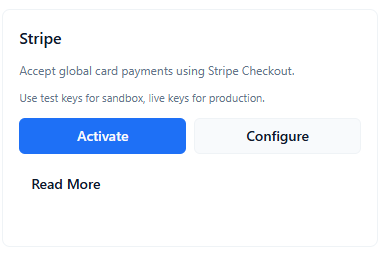
ConsultGen Stripe add-on overview card with Activate and Configure actions

Why this matters: Stripe gives your booking widget access to global card payments via Stripe Checkout — a Stripe-hosted payment page that handles card processing, 3D Secure, and compliance for you. In your booking lifecycle, clients pay at the point of booking using a checkout experience they already trust, which reduces friction and increases payment capture before the appointment takes place.

Important: Stripe is a separate payment provider. You need your own Stripe account, and Stripe transaction fees are charged by Stripe directly and are not included in your ConsultGen subscription.

What you are looking at

The Stripe add-on card in Add-on Overview includes:

  • Activate button — enables Stripe as a checkout option in the booking widget. Once active this changes to Deactivate.
  • Configure button — opens the full Stripe settings card where you enter API keys and Webhook Signing Secret.
  • Read More link — opens the detailed tutorial for this add-on.

The card also notes that Stripe supports both test keys for sandbox validation and live keys for production, matching Stripe's standard key-prefix convention.

How to activate Stripe

  1. Open Add-on Overview. Navigate to Settings and locate the Stripe card.
  2. Activate. Click Activate to enable Stripe as a checkout option in the booking widget.
  3. Open Configure. Click Configure to enter API keys and Webhook Signing Secret before accepting live payments.

When to deactivate Stripe

  • You are rotating API keys and want to pause checkout during the key transition.
  • You are switching payment providers temporarily.
  • You are investigating failed checkout sessions and want to prevent new attempts until resolved.

Deactivation removes Stripe from the widget checkout options immediately. No existing bookings are affected, and reactivation restores the checkout path once credentials are confirmed.

Common questions

Can I keep Stripe active while updating keys? Yes, but in-progress Stripe Checkout sessions during key rotation may fail. Save updated credentials and run a test booking before resuming live traffic.

Does activation verify my API keys? No. Activation enables the feature path in ConsultGen; valid Stripe Checkout still requires correctly configured keys and a registered webhook endpoint.

Does Stripe support test mode? Yes. Stripe uses separate test key sets (prefixed pk_test_ and sk_test_) and live key sets (pk_live_ and sk_live_). Use test keys during setup and switch to live keys only when ready for real transactions.

Configure Stripe checkout

Enter your Publishable Key, Secret Key, and Webhook Signing Secret, then register the endpoint in your Stripe dashboard.

  • Last updated: March 31, 2026
  • Reading time: 5 minutes
  • Difficulty: Beginner
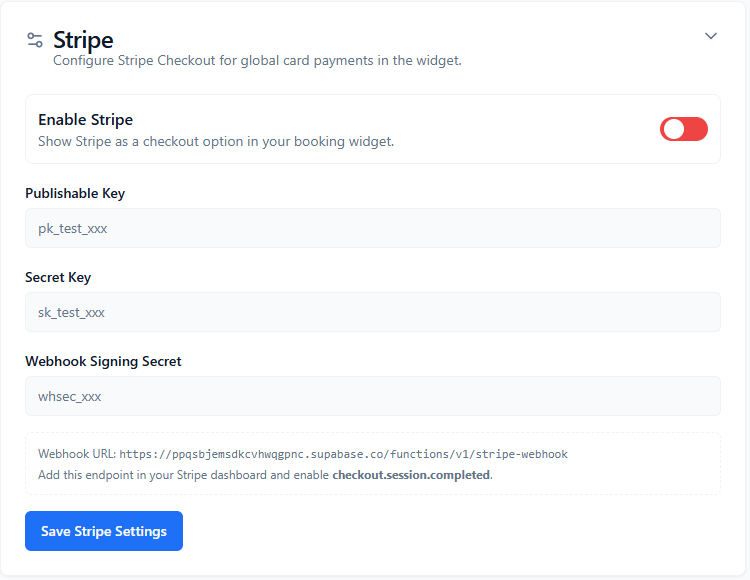
ConsultGen Stripe configuration card with Publishable Key, Secret Key, Webhook Signing Secret, webhook URL, and Save action

Why this matters: The Stripe configuration card connects your ConsultGen booking widget to Stripe Checkout. Three credentials are required: a Publishable Key (used client-side), a Secret Key (used server-side to create sessions), and a Webhook Signing Secret (used to verify that webhook events genuinely come from Stripe). Without all three correctly configured, checkout sessions will not be created and successful payments will not trigger booking status updates.

Billing note: Stripe transaction fees are charged by Stripe and are not included in your ConsultGen subscription. Review Stripe's current pricing at stripe.com/pricing.

Configuration fields and controls

  • Enable Stripe toggle — turns Stripe Checkout on or off in the booking widget. Must be enabled for the payment option to appear during booking.
  • Publishable Key — your Stripe publishable API key. Used client-side to initialise Stripe Checkout. Prefixed pk_test_ for test mode or pk_live_ for live mode.
  • Secret Key — your Stripe secret API key. Used server-side to create Checkout sessions and verify payments. Prefixed sk_test_ for test mode or sk_live_ for live mode. Treat this as a password — never expose it publicly.
  • Webhook Signing Secret — a Stripe-generated secret (prefixed whsec_) used to validate that incoming webhook events are genuinely from Stripe. This is obtained from your Stripe dashboard after you register the webhook endpoint.
  • Webhook URL — a read-only URL shown in the card. Copy this and register it in your Stripe dashboard as a webhook endpoint.
  • Save Stripe Settings — persists your current configuration.

How to configure Stripe

  1. Enable Stripe. Turn on the Enable Stripe toggle so Stripe Checkout appears in the widget.
  2. Enter your Publishable Key. Copy the Publishable Key from your Stripe dashboard (Developers → API keys) and paste it here. Use pk_test_ during setup and pk_live_ for production.
  3. Enter your Secret Key. Copy the Secret Key from the same Stripe location and paste it here. Use the matching test or live key.
  4. Copy the Webhook URL. The Webhook URL shown in the card is pre-generated for your account. Copy it.
  5. Register the webhook in Stripe. Go to your Stripe dashboard → Developers → Webhooks → Add endpoint. Paste the copied URL and add the checkout.session.completed event. After saving, Stripe will display a Webhook Signing Secret — copy it immediately.
  6. Enter the Webhook Signing Secret. Paste the whsec_-prefixed signing secret into the Webhook Signing Secret field in ConsultGen.
  7. Save settings. Click Save Stripe Settings to apply all three credentials.
  8. Run a test booking. Use test keys and Stripe's test card numbers to complete a full checkout session and confirm the booking status updates after payment.

Test keys vs live keys

  • Test keys (pk_test_ / sk_test_): use during development and QA. Stripe test mode processes no real money and provides a set of test card numbers at stripe.com/docs/testing.
  • Live keys (pk_live_ / sk_live_): use in production only. Real card charges are processed. Switch to live keys only after a complete end-to-end test with test keys has passed.

Each Stripe webhook endpoint (test or live) generates its own separate Webhook Signing Secret. Make sure the signing secret you paste into ConsultGen matches the endpoint you registered — test endpoints have their own whsec_ and live endpoints have their own.

The checkout.session.completed event

ConsultGen listens for the checkout.session.completed webhook event to confirm that a Stripe Checkout session was paid and to update the booking status accordingly. If this event is not enabled on the registered endpoint, payments may succeed on the Stripe side but the booking will not automatically reflect the completed payment.

To verify: go to Stripe dashboard → Developers → Webhooks → select your endpoint and confirm checkout.session.completed is listed in the subscribed events.

Troubleshooting checklist

  • Confirm the Publishable Key and Secret Key use the same mode prefix (both pk_test_/sk_test_ or both pk_live_/sk_live_).
  • Confirm the Webhook Signing Secret (whsec_) matches the endpoint you registered, not a different one.
  • Check for leading or trailing whitespace when pasting any of the three credentials.
  • Verify the Webhook URL is registered in Stripe and checkout.session.completed is subscribed.
  • Confirm Save Stripe Settings was clicked after adding or updating credentials.
  • Run a test booking with test keys and inspect Stripe's webhook event log for delivery status.

Common questions

Why is checkout not appearing in the widget? Confirm the Enable Stripe toggle is on and settings have been saved. Also verify Stripe is active in Add-on Overview.

Why is the booking status not updating after a successful Stripe payment? The most common reasons are: the webhook URL is not registered, checkout.session.completed is not subscribed, or the Webhook Signing Secret is incorrect. Check Stripe's webhook event log for delivery attempts and failed signature verifications.

I regenerated my Stripe keys — what do I need to update? Update the Publishable Key and Secret Key in ConsultGen. If you also re-registered the webhook endpoint, a new Webhook Signing Secret will be issued — update that too, then save.

Add-on

PayPal

Configure PayPal Adaptive Payments checkout for global payments in the booking widget.

PayPal add-on overview

Activate or deactivate PayPal, open configuration, and access supporting docs from Add-on Overview.

  • Last updated: March 31, 2026
  • Reading time: 3 minutes
  • Difficulty: Beginner
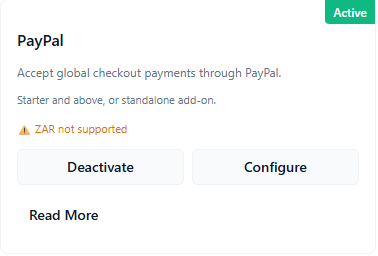
ConsultGen PayPal add-on overview card with Active status, ZAR not supported warning, and Configure action

Why this matters: PayPal gives your booking widget access to global PayPal checkout via Adaptive Payments, letting clients pay using their PayPal account or a card through the PayPal-hosted flow. This is useful when you serve an international audience or clients who prefer PayPal over direct card entry.

Important: PayPal is a separate payment provider. You need your own PayPal business account, and PayPal transaction fees are charged by PayPal directly and are not included in your ConsultGen subscription.

Currency warning — ZAR not supported: PayPal Adaptive Payments does not support the South African Rand (ZAR). If your booking prices are set in ZAR, PayPal checkout will not be available to your clients. Use a supported currency or choose a different payment gateway for ZAR-denominated bookings.

What you are looking at

The PayPal add-on card in Add-on Overview includes:

  • Active badge — indicates PayPal is currently enabled for the organisation.
  • Plan note — PayPal is available on the Starter plan and above, or as a standalone add-on purchase.
  • ZAR not supported warning — a yellow advisory shown on the card to remind you that ZAR bookings cannot be processed through this gateway.
  • Deactivate button — removes PayPal as a checkout option in the booking widget.
  • Configure button — opens the PayPal settings card where you set mode and enter credentials.
  • Read More link — opens the detailed tutorial for this add-on.

How to activate PayPal

  1. Open Add-on Overview. Navigate to Settings and locate the PayPal card.
  2. Check currency compatibility. Confirm your booking prices are in a PayPal-supported currency. If you use ZAR, PayPal cannot be used.
  3. Activate. Click Activate to enable PayPal as a checkout option in the booking widget.
  4. Open Configure. Click Configure to set mode and enter Client ID and Client Secret.

When to deactivate PayPal

  • You are rotating credentials and want to pause checkout during the update.
  • You are switching payment providers temporarily.
  • You are investigating failed checkout attempts and want to prevent new sessions until resolved.

Deactivation removes PayPal from the widget checkout options immediately. No existing bookings are affected.

Plan and availability

The PayPal add-on is available on the Starter plan and above. It can also be purchased as a standalone add-on if you are on a plan that does not include it by default. Check your current plan in the ConsultGen billing settings if the add-on is not visible.

Common questions

Can I activate PayPal if my prices are in ZAR? PayPal will activate, but customers checking out with ZAR-denominated bookings will encounter an error at the PayPal side. Use PayFast or another ZAR-compatible gateway for South African Rand bookings.

Does activation verify my credentials? No. Activation enables the feature path; valid checkout depends on correct Client ID, Client Secret, and mode settings in the configuration card.

Configure PayPal checkout

Set mode, enter Client ID and Client Secret, and optionally add your Webhook ID to enable PayPal Adaptive Payments checkout.

  • Last updated: March 31, 2026
  • Reading time: 5 minutes
  • Difficulty: Beginner
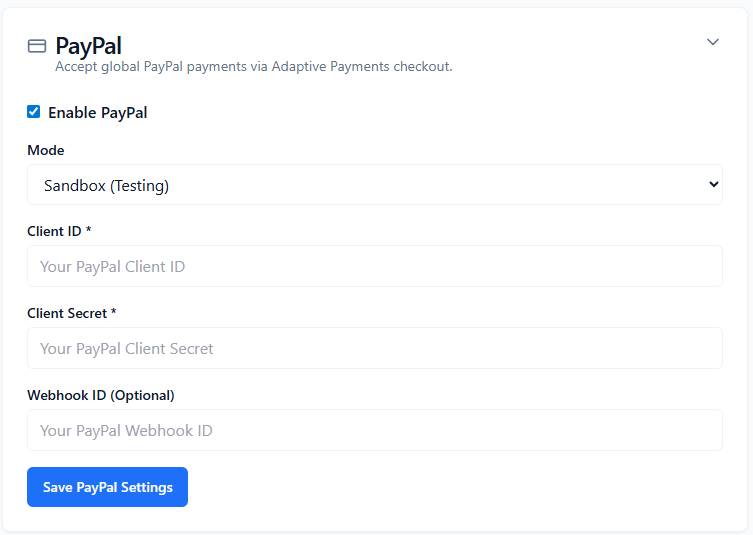
ConsultGen PayPal configuration card with mode, Client ID, Client Secret, Webhook ID, and Save action

Why this matters: The PayPal configuration card connects your ConsultGen booking widget to PayPal Adaptive Payments. You need a Client ID and Client Secret from your PayPal developer account, and the mode must match the credential set you are using. An optional Webhook ID can be added to receive payment event notifications back in ConsultGen.

Billing note: PayPal transaction fees are charged by PayPal and are not included in your ConsultGen subscription. Review PayPal's current pricing in your PayPal account settings.

Currency reminder: PayPal Adaptive Payments does not support ZAR. Do not use this gateway if your booking prices are denominated in South African Rand.

Configuration fields and controls

  • Enable PayPal checkbox — turns PayPal checkout on or off in the booking widget. Must be checked for the payment option to appear during booking.
  • Mode — selects the environment. Use Sandbox (Testing) while validating credentials and checkout flow. Switch to Live only when you are ready to process real payments.
  • Client ID (required) — your PayPal application Client ID. Obtained from the PayPal Developer Dashboard under My Apps & Credentials.
  • Client Secret (required) — your PayPal application Client Secret from the same location. Treat this as a password — do not share it publicly.
  • Webhook ID (optional) — the ID of a webhook you have created in your PayPal developer account. When provided, ConsultGen can receive and verify PayPal payment events to update booking status automatically.
  • Save PayPal Settings — persists your current configuration.

How to configure PayPal

  1. Enable PayPal. Check the Enable PayPal checkbox so PayPal appears as a checkout option in the widget.
  2. Select mode. Choose Sandbox for testing and switch to Live only when production credentials are ready.
  3. Get your Client ID and Client Secret. Log in to the PayPal Developer Dashboard (developer.paypal.com), go to My Apps & Credentials, and open your app (or create one). Copy the Client ID and Client Secret for the mode you selected — sandbox and live apps have separate credentials.
  4. Enter Client ID. Paste your PayPal Client ID into the Client ID field.
  5. Enter Client Secret. Paste your PayPal Client Secret into the Client Secret field.
  6. Add Webhook ID (optional). If you want ConsultGen to receive PayPal payment event notifications, create a webhook in your PayPal developer account and paste its ID here. This enables automatic booking status updates after payment.
  7. Save settings. Click Save PayPal Settings to apply your configuration.
  8. Run a test booking. Use Sandbox mode and PayPal's sandbox buyer accounts to validate the full checkout flow before switching to Live.

Sandbox vs Live

  • Sandbox: PayPal provides sandbox buyer and seller accounts for testing. No real money is moved. Use sandbox credentials (Client ID and Secret from your sandbox app) during setup.
  • Live: Processes real payments. Use live credentials from your live PayPal app. Switch to Live only after your sandbox tests pass and you are ready for real customers.

Sandbox and live apps in PayPal have separate Client IDs and Client Secrets. Make sure the credentials you enter match the Mode you have selected.

Webhook ID and payment event notifications

The Webhook ID field is optional. If left empty, PayPal checkout will still process payments, but ConsultGen will not automatically receive confirmation events from PayPal to update booking status — you may need to reconcile payment status manually.

To create a webhook: in your PayPal Developer Dashboard, open your app → Webhooks → Add Webhook. Set the notification URL to your ConsultGen webhook endpoint and subscribe to the relevant payment events. After saving, copy the Webhook ID and paste it into the ConsultGen Webhook ID field.

Troubleshooting checklist

  • Confirm the Mode (Sandbox or Live) matches the credential set you entered — sandbox credentials will not work in Live mode and vice versa.
  • Check for leading or trailing whitespace in the Client ID and Client Secret fields.
  • Verify the Enable PayPal checkbox is checked and Save was clicked.
  • Confirm your booking currency is not ZAR — PayPal Adaptive Payments will reject ZAR transactions.
  • If booking status is not updating after payment, check whether a Webhook ID has been entered and the corresponding webhook is active in your PayPal developer account.

Common questions

Why is checkout not appearing in the widget? Confirm the Enable PayPal checkbox is checked, settings have been saved, and PayPal is active in Add-on Overview.

Why is my PayPal checkout failing even with correct credentials? The most common causes are: mode mismatch (sandbox credentials in Live mode), unsupported currency (ZAR), or an inactive PayPal app in the developer dashboard.

Is the Webhook ID the same as a webhook URL? No. The Webhook ID is the identifier assigned to a webhook you create in your PayPal developer account. The webhook URL is set in your PayPal account when creating the webhook and points to ConsultGen's PayPal receiving endpoint.
Add-on

Recurring Bookings

Control whether customers can create recurring booking series from the widget.

Recurring Bookings add-on overview

Activate or deactivate recurring bookings, open configuration, and access detailed guidance from Add-on Overview.

  • Last updated: March 31, 2026
  • Reading time: 2 minutes
  • Difficulty: Beginner
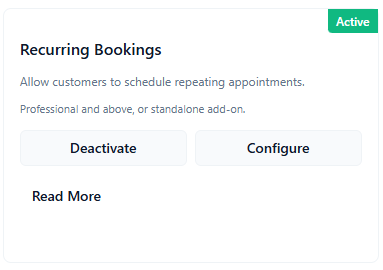
ConsultGen Recurring Bookings add-on overview card with Active status, plan note, and Configure action

Why this matters: Recurring Bookings lets customers schedule a series of appointments in one flow (for example weekly coaching or monthly check-ins). This increases booking commitment, improves retention, and often raises average order value (AOV) because customers book multiple sessions up front instead of one at a time.

Important: Recurring Bookings is available on Professional plan and above, or as a standalone add-on.

What you are looking at

The Recurring Bookings add-on card in Add-on Overview includes:

  • Active badge - indicates recurring booking series are currently enabled for the organisation.
  • Plan note - Professional plan and above, or standalone add-on.
  • Deactivate button - disables recurring series creation in the widget.
  • Configure button - opens the recurring settings card where you define repeat rules.
  • Read More link - opens the full tutorial for this add-on.

How to activate Recurring Bookings

  1. Open Add-on Overview. Navigate to Settings and find the Recurring Bookings card.
  2. Activate (if inactive). Click Activate to enable recurring series in your booking flow.
  3. Open Configure. Click Configure to set Maximum Repeats and allowed frequencies.

When to deactivate Recurring Bookings

  • You are revising pricing or package terms and want to pause new recurring series creation.
  • You want to temporarily enforce one-off bookings only.
  • You are troubleshooting repeat interval rules and need a short maintenance window.

Deactivation removes recurring booking options from the widget for new bookings. Existing bookings already created remain in your records.

AOV and operational impact

  • Higher AOV: Customers can commit to multiple sessions in one checkout path.
  • Better forecasting: Future appointment volume becomes more predictable.
  • Lower churn risk: Repeating schedules make drop-off less likely than ad-hoc rebooking.

Common questions

Does activation automatically set recurring rules? No. Activation enables the feature path; you still need to configure maximum repeats and allowed frequencies.

Will deactivating remove existing recurring bookings? No. It prevents new recurring series from being created, but existing bookings stay intact.

Configure Recurring Bookings

Enable recurring series, set Maximum Repeats, choose allowed frequencies, and save recurring settings.

  • Last updated: March 31, 2026
  • Reading time: 3 minutes
  • Difficulty: Beginner
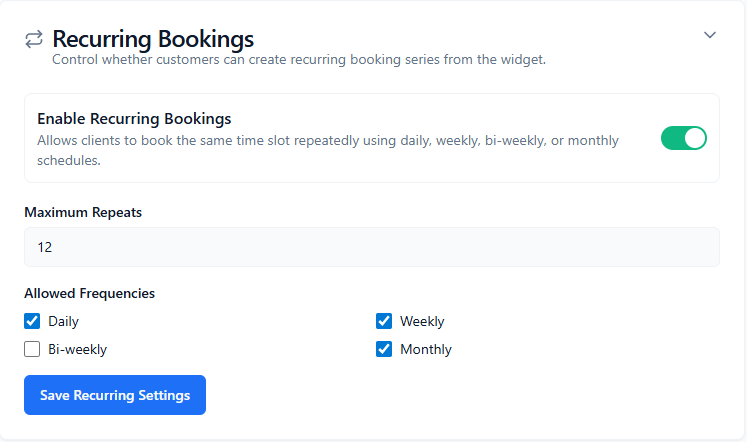
ConsultGen Recurring Bookings configuration card with enable toggle, maximum repeats, allowed frequencies, and save action

Why this matters: The Recurring Bookings configuration card controls the repeat rules your customers can use in the widget. Thoughtful limits protect your operations while still giving clients flexibility to commit to an ongoing schedule.

Growth note: Strong recurring rules can materially improve AOV by encouraging multi-session commitments during the initial booking flow.

Configuration fields and controls

  • Enable Recurring Bookings toggle - turns recurring series booking on or off in the widget.
  • Maximum Repeats - numeric limit for how many repeat appointments can be created in a series (example shown: 12).
  • Allowed Frequencies - checkboxes that define which interval options customers can choose: Daily, Weekly, Bi-weekly, Monthly.
  • Save Recurring Settings - persists your current configuration.

How to configure Recurring Bookings

  1. Enable recurring bookings. Turn on the Enable Recurring Bookings toggle.
  2. Set Maximum Repeats. Enter the maximum number of repeat sessions allowed in a single series. Use a value that balances customer flexibility with operational capacity.
  3. Select Allowed Frequencies. Tick the intervals you want to permit (Daily, Weekly, Bi-weekly, Monthly).
  4. Save settings. Click Save Recurring Settings.
  5. Run a widget test. Start a test booking and confirm the recurring schedule options shown to customers match your selected frequencies and repeat limits.

Recommended defaults

  • Most service businesses: Maximum Repeats 8-12, with Weekly and Monthly enabled.
  • High-frequency programs: Add Daily only if your staffing and slot capacity can absorb dense repeat schedules.
  • Longer-term care plans: Keep Monthly enabled to support maintenance-style follow-up sessions.

Operational safeguards

  • Avoid setting Maximum Repeats too high if your calendar is often near capacity.
  • If you experience slot congestion, reduce allowed frequencies (for example remove Daily) before lowering all availability globally.
  • When launching recurring for the first time, start with Weekly + Monthly only, then expand once utilisation patterns are stable.

Troubleshooting checklist

  • Confirm Enable Recurring Bookings is on and Save Recurring Settings was clicked.
  • Verify at least one frequency is selected; if none are selected customers may not see recurring options.
  • Check Maximum Repeats is a sensible positive number for your workflow.
  • Test from the widget after every settings update to confirm expected options appear.

Common questions

Can I allow only weekly recurring bookings? Yes. Select Weekly only in Allowed Frequencies and save.

What happens if I reduce Maximum Repeats later? New recurring series will follow the new limit; existing bookings already created remain unchanged unless manually adjusted.

Does this change one-time bookings? No. One-time bookings continue as normal. These settings only control recurring series options.

Add-on

Guest Add-on (Party Size)

Enable multi-attendee bookings so clients can add guests during checkout.

Guest Add-on (Party Size) overview

Review included status, open configuration guidance, and understand how party-size booking increases order value.

  • Last updated: March 31, 2026
  • Reading time: 2 minutes
  • Difficulty: Beginner
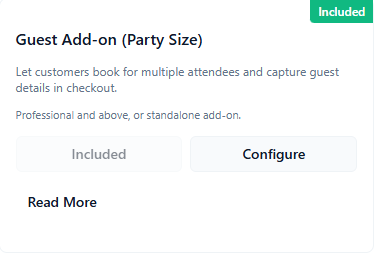
ConsultGen Guest Add-on (Party Size) overview card with Included badge and Configure action

Why this matters: Guest Add-on (Party Size) lets one customer book for multiple attendees in a single checkout flow. That increases average order value (AOV) because totals scale with party size, and it removes friction for customers who would otherwise place separate bookings.

Important: This add-on is available on Professional plan and above, or as a standalone add-on. In many accounts it appears as Included rather than a paid activation toggle.

What you are looking at

The Guest Add-on card in Add-on Overview includes:

  • Included badge - indicates this account already has access to the add-on.
  • Plan note - Professional plan and above, or standalone add-on.
  • Included button state - confirms entitlement is active for this account.
  • Configure button - opens guidance for how party-size booking behavior works.
  • Read More link - opens the full tutorial.

How this increases AOV

  • Customers can add attendees in one transaction instead of booking one person at a time.
  • Capacity-aware totals update based on total party size, increasing basket value for group services.
  • Guest details are captured during checkout, improving operational readiness for larger appointments.

How to use the add-on

  1. Open Add-on Overview. Navigate to Settings and locate Guest Add-on (Party Size).
  2. Open Configure. Use Configure to review setup and usage guidance.
  3. Set service capacity. In Services, set capacity above 1 for services that allow guests.
  4. Test in widget. In the Date & Time step, add guests and complete guest details during checkout.
Common questions

Do I need to activate anything if the card says Included? No. Included means entitlement is already active for this account.

Will party size affect availability? Yes. Slot capacity checks use total party size, so availability and totals adjust automatically.

Configure Guest Add-on (Party Size)

Use service capacity and widget guest flow settings to support multi-attendee bookings and capture guest details.

  • Last updated: March 31, 2026
  • Reading time: 2 minutes
  • Difficulty: Beginner
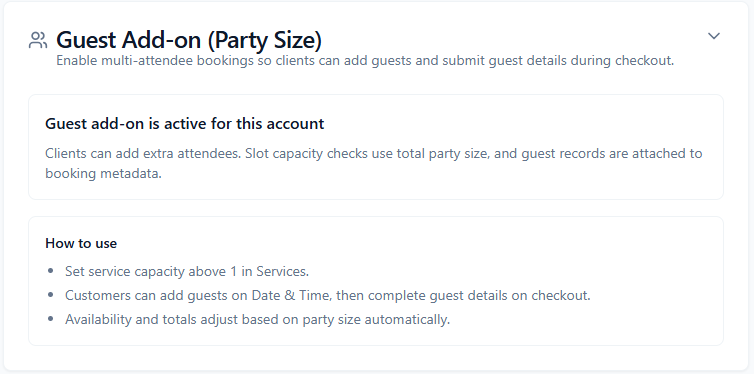
ConsultGen Guest Add-on (Party Size) configuration panel with active account note and how-to-use guidance

Why this matters: Guest Add-on (Party Size) changes booking behavior from single attendee to multi-attendee, allowing each booking to represent a group. This can increase AOV while keeping the checkout process simple for customers.

Included account behavior: In this UI, the add-on is active for the account and does not require credentials or API setup. Configuration is operational: set the right service capacity and verify guest capture flow.

What the configuration panel is showing

  • Active account notice - confirms guest add-on capability is enabled.
  • How to use checklist - outlines the operational setup path.
  • No external credentials required - unlike payment gateways, this add-on is controlled by service configuration and widget behavior.

How to configure Guest Add-on (Party Size)

  1. Set service capacity above 1. In Services, edit each service that should support guests and increase capacity beyond single-attendee mode.
  2. Validate Date & Time guest selection. Start a widget booking and confirm customers can add guests at the Date & Time step.
  3. Validate checkout guest details. Continue checkout and confirm guest details fields are present and captured.
  4. Confirm capacity math. Ensure availability checks and totals adjust based on total party size, not just primary customer count.
  5. Save and publish service changes. Apply updates so the widget reflects new party-size behavior.

Best-practice guardrails

  • Use realistic per-service capacity limits to avoid overbooking.
  • Align staffing and room/resource constraints with maximum expected party size.
  • Review cancellation and no-show policy language for group bookings to reduce disputes.

Troubleshooting checklist

  • If guests cannot be added, verify the service capacity is above 1.
  • If totals do not change with party size, verify pricing logic for group bookings in the target service.
  • If availability seems too strict, review slot capacity and concurrent booking limits.
  • After any service update, re-test the full widget flow from Date & Time through checkout.

Common questions

Is there a separate toggle to enable this add-on? If the card shows Included and the account notice says active, no extra toggle is required.

Can all services use party size? Only services configured with capacity above 1 should expose guest booking behavior.

Does this affect existing single bookings? No. Single-attendee bookings continue normally; this adds optional multi-attendee behavior where configured.

Add-on

Client Portal & White Label

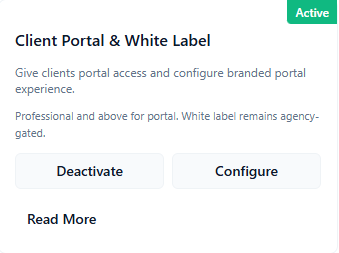
Configure portal access and branded customer portal experience.

Client Portal & White Label overview

Activate portal access, open branding configuration, and understand entitlement gating for white label.

  • Last updated: March 31, 2026
  • Reading time: 2 minutes
  • Difficulty: Beginner
ConsultGen Client Portal & White Label add-on overview card with Active status and Configure action

Why this matters: Client Portal gives customers a self-service area to log in and manage bookings, reducing manual admin load for your team. White Label removes platform branding so your portal experience feels fully aligned to your brand.

Plan access: Client Portal is available on Professional plan and above (or standalone). White Label branding is available on Agency and Enterprise entitlements.

What you are looking at

The Client Portal & White Label add-on card in Add-on Overview includes:

  • Active badge - indicates Client Portal and/or white label settings are currently enabled.
  • Plan note - portal is Professional+, while white label is Agency/Enterprise-gated.
  • Deactivate button - disables portal access for new portal sessions.
  • Configure button - opens full portal and branding settings.
  • Read More link - opens detailed setup guidance.

How to activate Client Portal

  1. Open Add-on Overview. Go to Settings and locate Client Portal & White Label.
  2. Activate portal. Click Activate if currently off.
  3. Open Configure. Click Configure to set logo, colors, domain, and white label visibility.

Branding impact

  • Set a custom logo URL for your portal header.
  • Apply your primary brand color for a consistent customer experience.
  • Use a custom portal domain for trust and cleaner customer comms.
  • Enable White Label (if entitled) to hide default platform branding.

Common questions

Can I use Client Portal without White Label? Yes. Portal and white label are separate controls; portal can be enabled while default branding remains visible.

Who can enable White Label? Accounts with Agency or Enterprise entitlement for white label.

Configure Client Portal & White Label

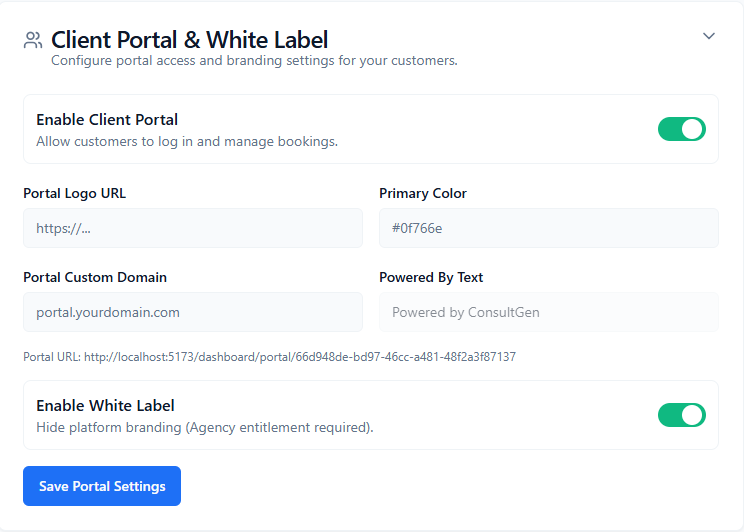
Enable portal access, set logo/color/domain, configure powered-by text, and control white label visibility.

  • Last updated: March 31, 2026
  • Reading time: 2 minutes
  • Difficulty: Beginner
ConsultGen Client Portal and White Label configuration card with portal toggle, branding fields, custom domain, and white label toggle

Why this matters: This card controls both customer access and brand presentation of your portal. Proper setup improves customer trust, reduces support requests, and keeps the post-booking experience consistent with your brand.

Configuration fields and controls

  • Enable Client Portal toggle - allows customers to log in and manage bookings.
  • Portal Logo URL - URL for your branded portal logo.
  • Primary Color - hex color used for branded portal accents (example: #0f766e).
  • Portal Custom Domain - custom domain for portal access (example: portal.yourdomain.com).
  • Powered By Text - footer text shown when white label is disabled.
  • Portal URL - generated link to your hosted client portal.
  • Enable White Label toggle - hides platform branding; requires Agency or Enterprise entitlement.
  • Save Portal Settings - persists all portal and branding updates.

How to configure Client Portal and White Label

  1. Enable Client Portal. Turn on the portal toggle so customers can access portal login and booking management.
  2. Set visual branding. Add Portal Logo URL and Primary Color to align portal UI with your brand.
  3. Set your custom domain. Enter Portal Custom Domain if you are running portal on your own subdomain.
  4. Choose footer behavior. Keep Powered By Text when white label is off.
  5. Enable White Label (if entitled). Toggle White Label to hide platform branding for Agency/Enterprise plans.
  6. Save settings. Click Save Portal Settings.
  7. Validate portal experience. Open the shown Portal URL and verify login, branding, and footer behavior.

Entitlement behavior

  • Client Portal: Professional and above (or standalone entitlement).
  • White Label: Agency and Enterprise entitlement required.

If White Label is toggled on without entitlement, save is blocked by server-side entitlement checks.

Troubleshooting checklist

  • Confirm Client Portal is enabled and settings were saved.
  • Verify logo URL is publicly accessible and uses HTTPS.
  • Check Primary Color format is valid hex.
  • Validate DNS and SSL for custom domain before customer rollout.
  • If White Label does not save, confirm account has white_label entitlement (Agency/Enterprise).

Common questions

Can I use custom branding without white label? Yes. Logo/color/domain can be configured while retaining Powered By text.

What happens when White Label is disabled? Powered By Text is shown again using your saved footer value (or default).

Is Portal URL different from custom domain? Yes. Portal URL is the system-generated hosted link; custom domain is your branded domain mapping.

Add-on

Coupon Management

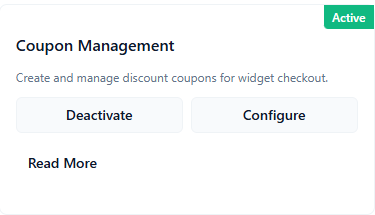
Create and manage discount coupons for widget checkout.

Coupon Management overview

Activate or deactivate coupons, open configuration, and manage promotional discount flow from Add-on Overview.

  • Last updated: March 31, 2026
  • Reading time: 2 minutes
  • Difficulty: Beginner
ConsultGen Coupon Management add-on overview card with Active status and Configure action

Why this matters: Coupons help you improve conversion and run targeted promotions without changing base service pricing. They are also a practical tool for first-booking incentives, seasonal campaigns, and retention offers.

Plan access: Coupon Management is available on Starter and up. Basic code-based discounts are supported from Starter tier, with additional advanced coupon controls available via advanced coupon entitlement where applicable.

What you are looking at

The Coupon Management add-on card in Add-on Overview includes:

  • Active badge - indicates coupon redemption is currently enabled in the widget.
  • Deactivate button - disables coupon usage at checkout.
  • Configure button - opens the Coupons configuration panel to manage codes.
  • Read More link - opens detailed setup guidance.

How to activate coupons

  1. Open Add-on Overview. Navigate to Settings and locate Coupon Management.
  2. Activate. Click Activate to enable coupon entry in widget checkout.
  3. Open Configure. Click Configure to add your first code and confirm discount behavior.

When to deactivate coupons

  • You need to pause all promotions quickly.
  • You are auditing discount abuse and want a temporary hold.
  • You are running pricing updates and want clean baseline performance data.

Deactivation stops coupon redemption for new checkouts while preserving your saved coupon codes for later use.

Common questions

Can I keep coupons configured but disabled? Yes. Your coupon codes remain saved even when coupons are toggled off.

Is Coupon Management available on Starter? Yes. Starter and up can use coupons.

Configure Coupons

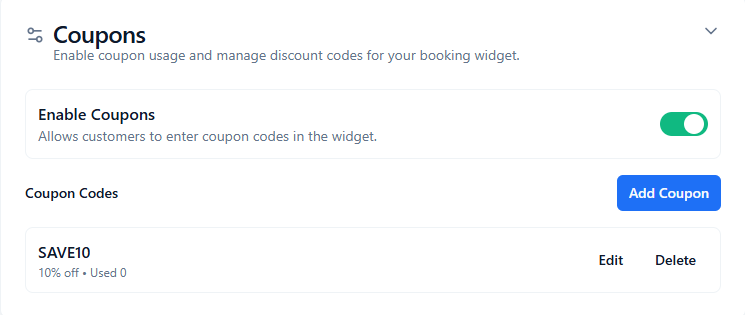
Enable coupons, add coupon codes, and manage edit/delete actions while monitoring usage counts.

  • Last updated: March 31, 2026
  • Reading time: 2 minutes
  • Difficulty: Beginner
ConsultGen Coupons configuration panel with enable toggle, Add Coupon button, coupon list, and edit/delete actions

Why this matters: The Coupons panel gives you full control over discount code operations in one place, from enabling redemption to adding and maintaining active promotion codes.

Configuration fields and controls

  • Enable Coupons toggle - allows customers to enter coupon codes in widget checkout.
  • Add Coupon button - creates a new coupon code record.
  • Coupon Codes list - shows existing codes with discount summary and usage metrics (example: SAVE10, 10% off, Used 0).
  • Edit action - updates coupon details such as discount value, limits, or validity windows (depending on available features).
  • Delete action - removes a coupon from active use.

How to configure coupons

  1. Enable coupons. Turn on the Enable Coupons toggle.
  2. Add a code. Click Add Coupon and create your first code (for example SAVE10).
  3. Verify code appears. Confirm the code appears in the Coupon Codes list with expected discount values.
  4. Run a checkout test. Complete a widget booking and apply the code to validate discount calculation.
  5. Maintain active promos. Use Edit for updates and Delete for retiring expired/unused campaigns.

Starter-and-up guidance

  • Starter: Basic coupon workflows are supported and useful for launch offers.
  • Higher tiers/entitlements: Additional coupon logic may be available where advanced coupon entitlement is enabled.

Promotion best practices

  • Use short, memorable codes (for example SAVE10, WELCOME15).
  • Limit overlapping campaigns to avoid confusing discount behavior.
  • Review usage counts regularly and retire stale codes.
  • Test each new code in widget checkout before announcing it publicly.

Troubleshooting checklist

  • Confirm Enable Coupons is on and settings were saved.
  • Verify code spelling, case, and validity settings match what you published.
  • If discounts do not apply, run a fresh checkout session after editing the coupon.
  • If unexpected totals appear, check for competing active promotions.

Common questions

Can I edit a coupon after customers have used it? Yes, but changes affect future redemptions. Past completed bookings keep their originally applied totals.

Does deleting a coupon affect old bookings? No. It only prevents future redemptions.

Can I disable coupons without deleting all codes? Yes. Toggle coupons off and keep your code library for later campaigns.

Add-on

Tax / VAT

Apply tax to booking totals after coupons in the public widget.

Tax / VAT overview

Activate or deactivate tax calculation, open configuration, and understand tax ordering after discounts/coupons.

  • Last updated: March 31, 2026
  • Reading time: 2 minutes
  • Difficulty: Beginner
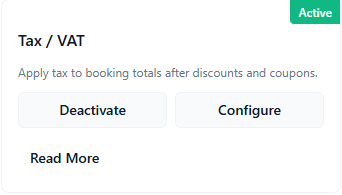
ConsultGen Tax / VAT add-on overview card with Active status and Configure action

Why this matters: Tax / VAT ensures your checkout totals are compliant and predictable by applying tax in a consistent order after discounts and coupons are calculated. This helps avoid customer disputes and simplifies reporting.

Plan access: Tax / VAT is available on Starter and up.

What you are looking at

The Tax / VAT add-on card in Add-on Overview includes:

  • Active badge - indicates tax calculation is currently enabled.
  • Deactivate button - disables tax calculation in public widget checkout.
  • Configure button - opens Tax / VAT settings to manage rate and behavior.
  • Read More link - opens detailed setup guidance.

How to activate Tax / VAT

  1. Open Add-on Overview. Navigate to Settings and locate Tax / VAT.
  2. Activate. Click Activate to enable tax calculation in widget checkout.
  3. Open Configure. Click Configure to set tax rate and validate totals.

Tax ordering behavior

In this flow, tax is applied after discounts and coupons are applied. That means checkout totals generally follow this order:

Subtotal - Discount/Coupon = Taxable Amount, then Taxable Amount x Tax Rate = Tax, then Final Total = Taxable Amount + Tax.

Common questions

Can I disable tax temporarily? Yes. Deactivate tax to stop applying tax at checkout while preserving your saved rate value.

Is Tax / VAT available on Starter? Yes. Starter and up can use tax calculation.

Configure Tax / VAT

Enable tax calculation, set Tax Rate (%), and save settings for public widget checkout totals.

  • Last updated: March 31, 2026
  • Reading time: 2 minutes
  • Difficulty: Beginner
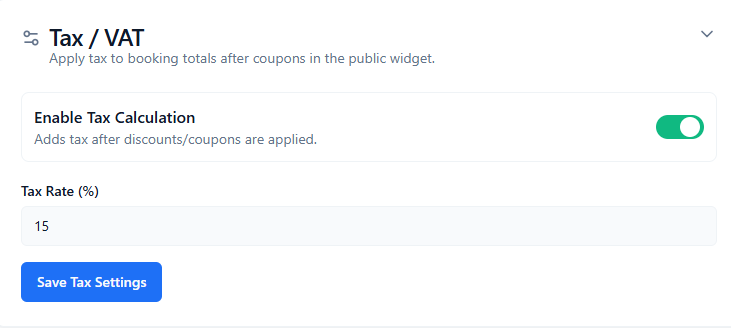
ConsultGen Tax / VAT configuration card with enable toggle, tax rate input, and save action

Why this matters: The Tax / VAT settings card controls how tax is applied to checkout totals. A correctly configured tax rate ensures accurate customer pricing and cleaner reconciliation across invoices and payment reports.

Configuration fields and controls

  • Enable Tax Calculation toggle - adds tax after discounts/coupons are applied.
  • Tax Rate (%) - numeric percentage rate used in checkout tax calculation (example shown: 15).
  • Save Tax Settings - persists your tax configuration.

How to configure Tax / VAT

  1. Enable tax calculation. Turn on the Enable Tax Calculation toggle.
  2. Set Tax Rate (%). Enter the tax percentage you need to apply in checkout (for example 15 for 15%).
  3. Save settings. Click Save Tax Settings.
  4. Run a checkout test. Validate totals with and without coupons to confirm tax is added after discount calculations.

Starter-and-up guidance

  • Starter: Core tax rate configuration is available for checkout totals.
  • Higher tiers: You can combine tax settings with broader promotional and operational workflows.

Validation checklist

  • Confirm Enable Tax Calculation is on and Save Tax Settings was clicked.
  • Verify Tax Rate (%) is entered as a percentage number, not decimal fraction.
  • Test a booking with coupon/discount to confirm tax ordering matches policy.
  • Test a booking without coupon to verify baseline tax behavior.

Common questions

Should I enter 0.15 for 15%? No. Enter 15 for 15%.

Does tax apply before or after coupons? In this setup, tax applies after discounts/coupons are applied.

Can I save a tax rate while tax is disabled? Yes. You can keep a saved rate and activate tax when ready.

Add-on

Email Templates

Configure admin and customer emails sent after a booking.

Email Templates overview

Manage sender settings and booking email template content for admin and clients.

  • Last updated: March 31, 2026
  • Reading time: 1 minute
  • Difficulty: Beginner
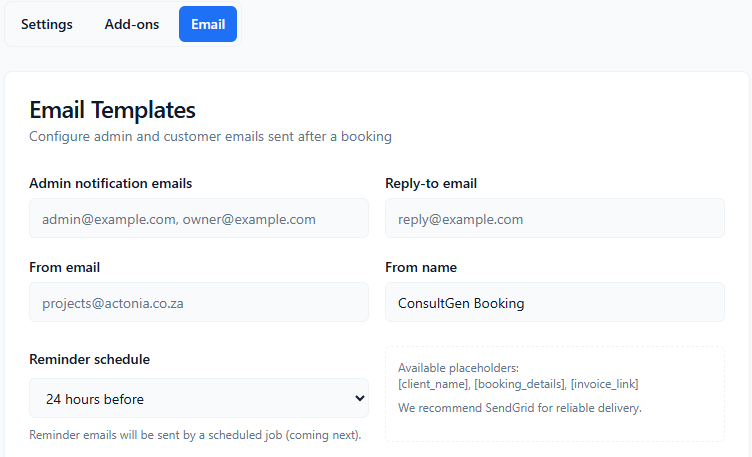
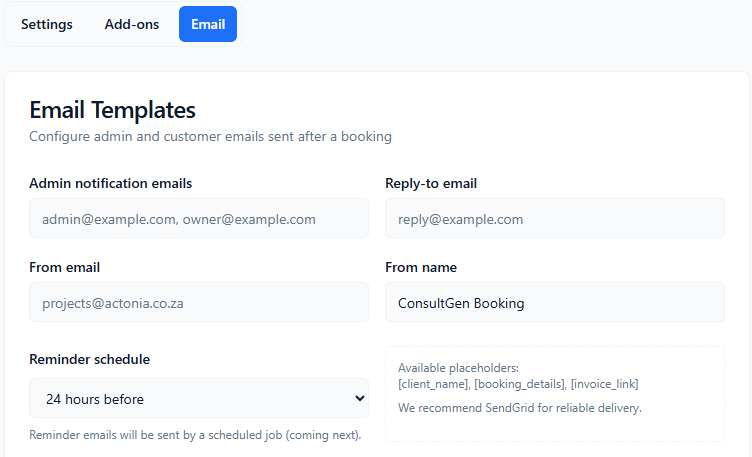
ConsultGen Email Templates settings panel with sender fields, reminder schedule, and placeholders help text

Why this matters: Email Templates control how your booking communications are delivered and how they read to customers and admins. Strong template setup improves attendance, reduces no-shows, and keeps messaging professional and consistent.

What you are looking at

The Email Templates settings panel includes:

  • Admin notification emails - comma-separated recipient list for internal booking alerts.
  • Reply-to email - address used when recipients click reply.
  • From email and From name - sender identity shown in inboxes.
  • Reminder schedule - timing for reminder email dispatch (example: 24 hours before).
  • Available placeholders helper (for example [client_name], [booking_details], [invoice_link]).

The templates section below this panel controls three core message types:

  • Admin Notification
  • Client Confirmation
  • Client Reminder

How to start

  1. Set sender fields first. Configure from/reply/admin recipient values before editing template bodies.
  2. Confirm reminder schedule. Choose the timing that matches your service model.
  3. Edit templates with placeholders. Keep content personalized using supported placeholder tokens.
  4. Save and test. Trigger a test booking and verify all three email types.

Deliverability note

SMTP is supported, but SendGrid is recommended for reliable deliverability and easier event tracking.

Configure Admin and Client Email Templates

Edit subjects and bodies for admin notifications, client confirmations, and reminders with placeholder tokens.

  • Last updated: March 31, 2026
  • Reading time: 2 minutes
  • Difficulty: Beginner
ConsultGen email template editors for Admin Notification, Client Confirmation, and Client Reminder with placeholder tokens

Why this matters: These template editors define your customer communication voice across the booking lifecycle. Clear, personalized templates reduce support queries and improve client confidence before appointments.

Template editors shown

  • Admin Notification
    Example subject: New Appointment: [client_name]
    Example body includes: [client_name], [booking_details]

  • Client Confirmation
    Example subject: Your Appointment is Confirmed!
    Example body includes: [client_name], [booking_details], [meeting_link], [portal_link], [invoice_link]

  • Client Reminder
    Example subject: Reminder: Your Appointment is Tomorrow
    Example body includes: [client_name], [booking_details], [meeting_link], [portal_link]

How to configure template content

  1. Edit Admin Notification. Keep it concise for operations teams. Include core booking details and client identity.
  2. Edit Client Confirmation. Include clear next steps, meeting/join details, portal access, and invoice link.
  3. Edit Client Reminder. Keep timing and action points obvious (time, join link, manage booking link).
  4. Use placeholders consistently. Use supported tokens only; leave no hardcoded test values.
  5. Save Email Settings. Persist all sender/template changes.
  6. Run test bookings. Verify formatting, placeholder replacement, and tone in real inboxes.

Placeholder best practices

  • Use [client_name] early in the message for personalization.
  • Keep [booking_details] in both confirmation and reminder templates.
  • Use [meeting_link] only when applicable (online services).
  • Include [portal_link] for self-service booking updates.
  • Include [invoice_link] where payment follow-up is needed.

Troubleshooting checklist

  • If emails do not arrive, verify from/reply/admin recipient addresses and your provider setup.
  • If placeholder text appears raw, confirm token spelling exactly matches supported format.
  • If reminders are not sent, verify reminder schedule and scheduler status.
  • After edits, always run at least one full booking flow test.
Add-on

Video Conference Settings

Configure video conferencing options for your bookings.

Video Conference Settings overview

Manage Google Meet, Microsoft Teams, and email inclusion for automatically generated meeting links.

  • Last updated: March 31, 2026
  • Reading time: 2 minutes
  • Difficulty: Beginner
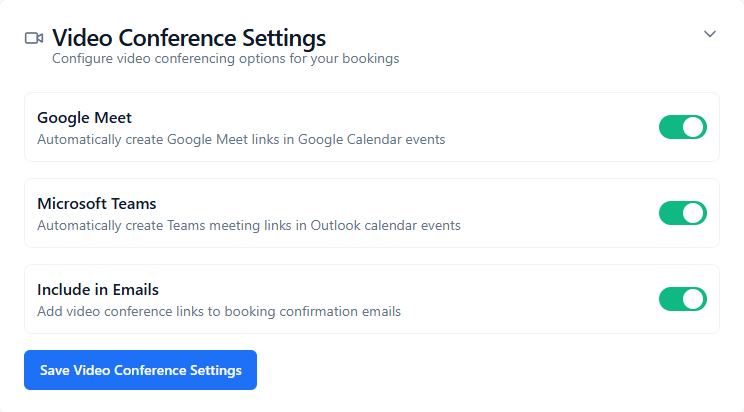
ConsultGen Video Conference Settings panel with toggles for Google Meet, Microsoft Teams, and Include in Emails

Why this matters: Video Conference Settings automate meeting link creation for online appointments, reducing manual coordination and making confirmation emails more useful to clients.

Plan access: Based on the current implementation, this settings panel is available during free trial, Starter, and up. The actual meeting-link behavior depends on having the relevant calendar integrations connected.

What you are looking at

The Video Conference Settings panel includes three controls:

  • Google Meet - automatically creates Google Meet links in Google Calendar events.
  • Microsoft Teams - automatically creates Teams meeting links in Outlook calendar events.
  • Include in Emails - adds generated video links to booking confirmation emails.

How to use it

  1. Enable the provider you use. Turn on Google Meet and/or Microsoft Teams depending on your connected calendar system.
  2. Decide whether to email links. Turn on Include in Emails if you want clients to receive meeting links in confirmations.
  3. Save settings. Click Save Video Conference Settings.
  4. Test a booking. Verify meeting links are created and inserted where expected.

Important dependency

These toggles control meeting-link behavior, but link generation only works when the underlying calendar integrations are connected and authorized. Google Meet depends on Google Calendar event creation, and Teams depends on Outlook/Microsoft event creation.

Common questions

Can I enable both Google Meet and Teams? Yes, the UI allows both toggles, but the actual meeting link created will depend on which calendar integration is used for the booking flow.

Can I create meeting links without including them in emails? Yes. Keep Include in Emails off if you want links generated in calendar events only.

Configure Video Conference Settings

Enable Google Meet and Teams link creation, control whether links appear in emails, and save the meeting-link behavior for bookings.

  • Last updated: March 31, 2026
  • Reading time: 2 minutes
  • Difficulty: Beginner
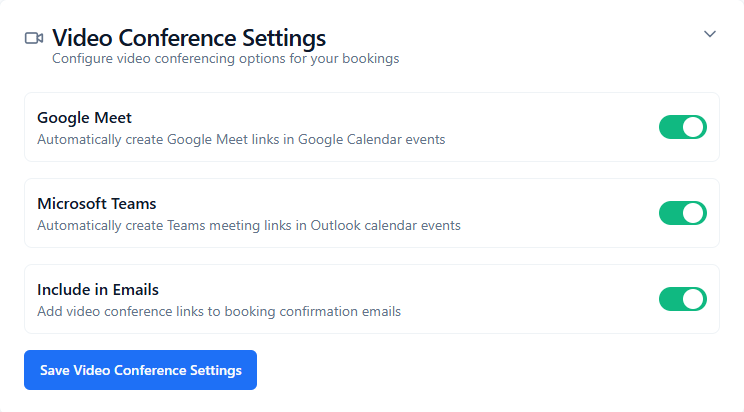
ConsultGen Video Conference Settings configuration card with Google Meet, Microsoft Teams, Include in Emails toggles, and save button

Why this matters: The settings card lets you decide how automatically generated video links behave across bookings, calendar events, and customer communications.

Configuration fields and controls

  • Google Meet toggle - automatically creates Google Meet links in Google Calendar events.
  • Microsoft Teams toggle - automatically creates Teams meeting links in Outlook calendar events.
  • Include in Emails toggle - adds video conference links to booking confirmation emails.
  • Save Video Conference Settings - persists your current configuration.

How to configure video conference behavior

  1. Turn on Google Meet if using Google Calendar. This allows Meet links to be created in Google-based calendar events.
  2. Turn on Microsoft Teams if using Outlook/Microsoft calendars. This allows Teams links to be created for Microsoft-based events.
  3. Choose whether to include links in emails. Turn on Include in Emails if clients should receive the meeting link in confirmation messages.
  4. Save settings. Click Save Video Conference Settings.
  5. Validate with test bookings. Confirm the meeting link is created, attached to the event, and optionally present in emails.

Usage guidance

  • Free trial and Starter: The current implementation exposes this settings panel without a plan gate.
  • Integration dependency: These settings do not replace calendar integration setup. They depend on connected Google or Microsoft calendar flows.
  • Email inclusion: Useful when clients join directly from the confirmation message instead of calendar invite alone.

Troubleshooting checklist

  • If no meeting link is created, check the related calendar integration is connected and creating events successfully.
  • If links are missing from emails, verify Include in Emails is on and confirmation emails are enabled.
  • If Google Meet or Teams behaves unexpectedly, test one provider path at a time.
  • After any toggle change, save and run a fresh booking test.

Common questions

Does this panel itself require a paid plan? In the current implementation, no explicit entitlement gate is applied; it is available in free trial, Starter, and up.

Why is a toggle on but no link appears? The most common reason is that the underlying calendar integration is not connected or not being used for that booking path.

Add-on

Analytics & Tracking (GA4)

Configure Google Analytics 4 purchase tracking for the booking widget.

Analytics & Tracking (GA4) overview

Enable or disable GA4 purchase tracking and understand when booking purchase events are sent from the public widget.

  • Last updated: March 31, 2026
  • Reading time: 2 minutes
  • Difficulty: Beginner
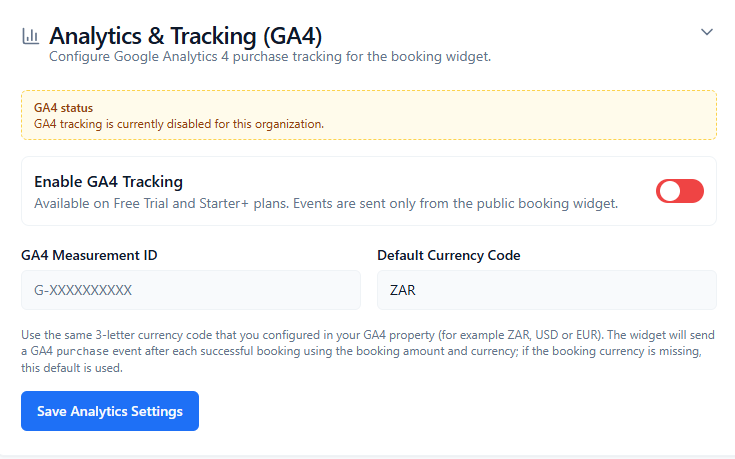
ConsultGen Analytics & Tracking GA4 panel with status notice, enable toggle, measurement ID, currency code, and save action

Why this matters: GA4 tracking lets you measure successful booking purchases from the public widget, giving you cleaner attribution data for campaigns, channels, and booking revenue.

Plan access: The current implementation makes GA4 available on Free Trial and Starter+ plans. The Starter entitlement key is ga4_widget_measurement, and the dashboard copy explicitly states Free Trial and Starter+ availability.

What you are looking at

The Analytics & Tracking (GA4) panel includes:

  • GA4 status notice - shows whether tracking is currently enabled for the organization.
  • Enable GA4 Tracking toggle - turns purchase event sending on or off.
  • GA4 Measurement ID - your GA4 property measurement ID (example: G-XXXXXXXXXX).
  • Default Currency Code - fallback 3-letter currency code used if booking currency is missing.
  • Save Analytics Settings - persists the tracking configuration.

How it works

When enabled, the public booking widget sends a GA4 purchase event after each successful booking. Events are sent only from the public booking widget, not from internal dashboard activity.

How to activate GA4 tracking

  1. Open Analytics & Tracking (GA4). Go to Settings and open the GA4 panel.
  2. Enable GA4 Tracking. Turn on the toggle.
  3. Enter Measurement ID. Paste your GA4 Measurement ID.
  4. Set Default Currency Code. Use the same 3-letter currency configured in your GA4 property.
  5. Save settings. Click Save Analytics Settings.
  6. Validate a purchase event. Complete a booking through the public widget and verify the purchase event in GA4 DebugView or Realtime reports.

Common questions

Does GA4 track dashboard actions? No. The current implementation sends events only from the public booking widget.

Is GA4 enabled on free trial? Yes, based on the current dashboard behavior and status messaging.

Configure Analytics & Tracking (GA4)

Set Measurement ID, default currency code, and save GA4 purchase tracking for the public booking widget.

  • Last updated: March 31, 2026
  • Reading time: 2 minutes
  • Difficulty: Beginner
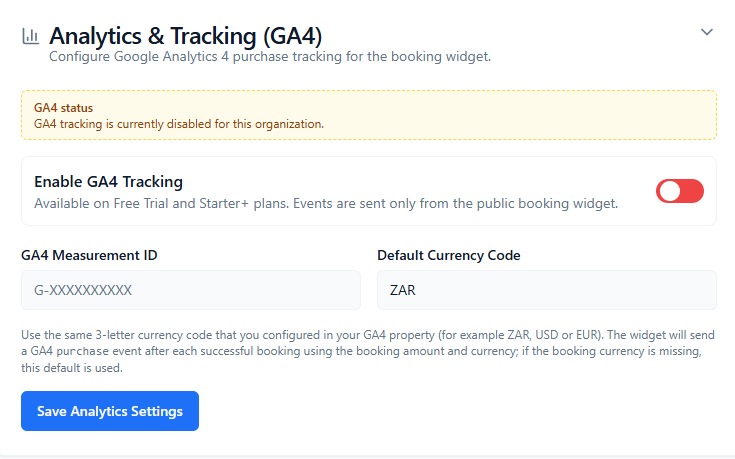
ConsultGen GA4 configuration card with status notice, enable toggle, measurement ID, default currency code, and save button

Why this matters: Accurate GA4 configuration ensures booking revenue and purchase attribution are sent to the right property with the correct currency context.

Configuration fields and controls

  • GA4 status - indicates whether GA4 tracking is currently disabled or active for the organization.
  • Enable GA4 Tracking toggle - enables purchase events from the public booking widget.
  • GA4 Measurement ID - the destination measurement ID for your GA4 property.
  • Default Currency Code - fallback currency code used if booking currency is missing.
  • Save Analytics Settings - saves the GA4 configuration.

How to configure GA4

  1. Turn on GA4 Tracking. Enable the toggle.
  2. Paste your Measurement ID. Enter the ID exactly as issued in GA4, typically beginning with G-.
  3. Set your default currency. Use the same 3-letter currency code configured in GA4, for example ZAR, USD, or EUR.
  4. Save settings. Click Save Analytics Settings.
  5. Run a public widget test. Complete a successful booking and confirm the purchase event appears in GA4 DebugView, Realtime, or your event stream.

Currency behavior

The widget sends booking amount and booking currency when available. If booking currency is missing, the Default Currency Code value is used instead.

Validation checklist

  • Confirm the Measurement ID is entered correctly and includes the G- prefix.
  • Use the same 3-letter currency code configured in your GA4 property.
  • Test only from the public widget if you expect events, not from the dashboard.
  • Use GA4 DebugView or Realtime reports to verify live event arrival.

Common questions

Why are no events showing in GA4? The most common causes are an incorrect Measurement ID, no completed public-widget booking, or checking the wrong GA4 property.

Can I use lowercase currency codes? The UI uppercases the value, but you should still enter a valid 3-letter ISO-style code like ZAR, USD, or EUR.

Does the widget send a purchase event for every successful booking? Yes, that is the intended behavior when GA4 tracking is enabled.

Add-on

Appearance Customizer

Customize booking widget colors, typography, and styling to match your brand.

Appearance Customizer overview

Review the brand color inputs and style sliders used to control how the public booking widget looks.

  • Last updated: April 1, 2026
  • Reading time: 2 minutes
  • Difficulty: Beginner
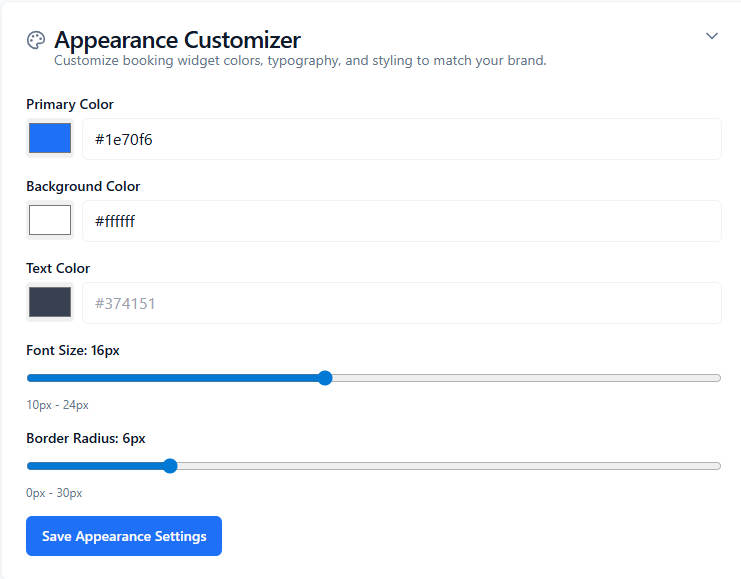
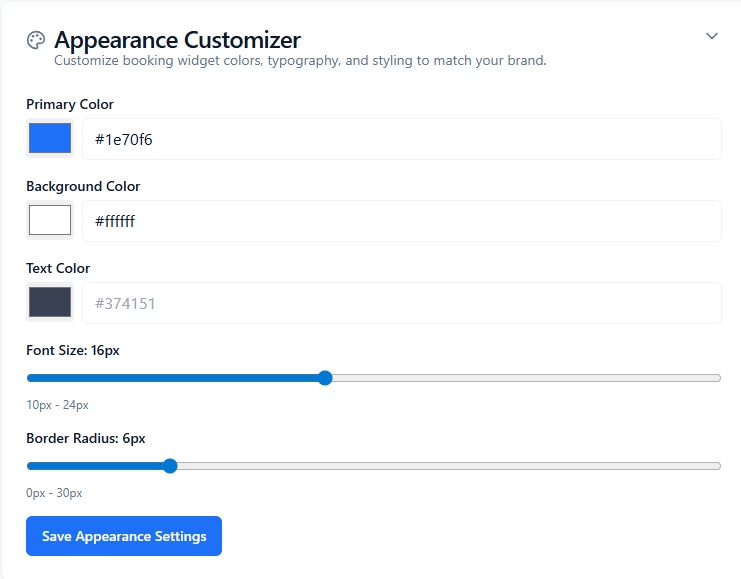
ConsultGen Appearance Customizer card with primary color, background color, text color, font size, border radius, and save button

Why this matters: Appearance Customizer lets you make the public booking widget feel like part of your brand instead of a generic embedded form.

Plan access: Appearance Customizer is included in the published Starter plan and above. It stores organization-level styling values for the customer-facing booking widget.

What you are looking at

The Appearance Customizer panel includes five styling controls and one save action:

  • Primary Color - brand accent color used for prominent widget elements such as buttons and highlights.
  • Background Color - the base surface color for the widget.
  • Text Color - the main text color used across the booking experience.
  • Font Size slider - adjusts the base font size from 10px to 24px.
  • Border Radius slider - adjusts corner rounding from 0px to 30px.
  • Save Appearance Settings - applies and stores the current style configuration.

How to use it

  1. Set your brand colors. Use the color pickers or type hex values for Primary, Background, and Text.
  2. Adjust typography scale. Move the Font Size slider until the widget reads comfortably on your site.
  3. Refine the visual feel. Increase or reduce Border Radius depending on whether you want sharper or softer corners.
  4. Save settings. Click Save Appearance Settings.
  5. Preview your widget. Open the widget preview or your live embed and confirm the styling still feels readable and on-brand.

Helpful detail

Each color row supports both a visual color picker and a text input, which is useful if you already have brand hex values from your designer or website style guide.

Common questions

Do these settings change only the booking widget? Yes. This panel is intended for the customer-facing booking widget styling rather than the entire dashboard UI.

Can I use exact brand hex codes? Yes. You can either pick a color visually or type the exact hex code directly into the text field.

Configure Appearance Customizer

Enter brand hex values, adjust font size and border radius, and save the styling used by the public booking widget.

  • Last updated: April 1, 2026
  • Reading time: 2 minutes
  • Difficulty: Beginner
ConsultGen Appearance Customizer configuration card showing brand color fields, sliders, and save button

Why this matters: A well-configured widget looks more trustworthy, aligns with the rest of your site, and reduces the visual jump customers feel when moving into your booking flow.

Configuration fields and controls

  • Primary Color - accepts a picked color or typed hex value, with a default placeholder of #3b82f6.
  • Background Color - accepts a picked color or typed hex value, with a default placeholder of #ffffff.
  • Text Color - accepts a picked color or typed hex value, with a default placeholder of #374151.
  • Font Size - slider range from 10 to 24 pixels.
  • Border Radius - slider range from 0 to 30 pixels.
  • Save Appearance Settings - saves your current styling values.

How to configure the widget styling

  1. Choose a primary color. Use your main brand color for buttons and emphasis elements.
  2. Set background and text contrast. Pick readable combinations so clients can easily complete the booking flow.
  3. Adjust font size. Increase the size if the widget feels cramped or too small on your site.
  4. Adjust border radius. Match the corner style used across the rest of your brand and website components.
  5. Save settings. Click Save Appearance Settings.
  6. Review on desktop and mobile. Check that buttons, text, and card edges still feel consistent across screen sizes.

Best-practice guidance

  • Keep contrast strong: Avoid using light text on light backgrounds or dark text on very dark surfaces.
  • Use your real brand colors: If your website already has a design system, mirror those hex values here.
  • Do not oversize fonts: Larger text can help readability, but overly large values may make the widget feel crowded on mobile.
  • Test the final result live: The best check is an actual widget preview embedded in the same context where customers book.

Common questions

What happens if I leave a field blank? The widget falls back to its default styling behavior where no custom value is stored.

Should I use the picker or the text input? Use the picker for quick visual changes and the text input when you need exact brand hex values.

Feature

Staff Management

Add staff members, assign them to services, review schedules, and control what staff can do inside their own dashboard.

Staff Management overview

Understand how the Staff Members page works — adding staff, sending invites, reviewing shifts, and opening the staff dashboard.

  • Last updated: April 1, 2026
  • Reading time: 2 minutes
  • Difficulty: Beginner
ConsultGen Staff Members page showing a staff card with name, email, phone, bio, Public Profile badge, Send Invite button, Shift Management button, edit and delete icons

Why this matters: Staff Management is the central admin area for building and maintaining your team. From here you create staff profiles, link them to services, review their schedules, and invite them to their own staff dashboard.

Plan access: Staff Management is available on the Professional plan and above.

What you are looking at

The Staff Members page contains a search bar at the top and a list of staff cards below it. The page header includes two primary actions:

  • Open Staff Dashboard — opens the staff-facing dashboard so you can preview what your staff members see.
  • + Add Staff Member — opens the form to create a new staff profile.

Each staff card displays the staff member's photo, name, email, phone number, bio, and a Public Profile badge if the member is set to visible on the public staff directory. The card also shows four action buttons:

  • Send Invite — sends or re-sends a dashboard invite email to the staff member's email address.
  • Shift Management — opens a read-only view of that staff member's weekly schedule, holidays, and special days.
  • Edit (pencil icon) — opens the staff profile form pre-filled with the existing details.
  • Delete (trash icon) — permanently removes the staff member record.

How the invite flow works

  1. Click Send Invite on a staff card.
  2. A green Invite Sent confirmation banner appears at the top of the page.
  3. The staff member receives an email with a link to sign in at the staff dashboard.
  4. Their email address on the staff profile must match the email they use to sign in — the dashboard link is resolved by email.

Common questions

Can I search for a staff member? Yes. Use the search bar at the top to filter by name, email, or phone number.

What does Public Profile mean? If enabled, the staff member appears on the public staff widget, allowing customers to select a preferred staff member when booking.

What happens if I delete a staff member? Their profile and service assignments are removed. Existing bookings linked to that staff member are not automatically modified.

Add a new staff member

Fill in the staff profile form to create a new team member with a name, email, optional photo, phone, bio, and visibility settings.

  • Last updated: April 1, 2026
  • Reading time: 2 minutes
  • Difficulty: Beginner
ConsultGen Add New Staff Member form showing photo upload, first name, last name, email, phone optional, bio optional, Active and Public checkboxes, Cancel and Create buttons

Why this matters: Each staff member needs a profile in ConsultGen to be assigned to services and to have bookings linked to them. The email address on the profile is also the login credential for the staff dashboard, so it must be exact.

Form fields

  • Photo — optional upload (JPEG, PNG or GIF, max 5 MB). Displayed on the staff card and optionally on the public staff directory.
  • First Name / Last Name — the staff member's display name across bookings and the dashboard.
  • Email — required. Must match the email this person uses to log in, as the dashboard links staff by email address.
  • Phone (Optional) — stored on the profile and visible to admins.
  • Bio (Optional) — a short description shown on the staff card and the public staff directory.
  • Active checkbox — checked by default. Inactive staff members do not appear as available options in the booking widget.
  • Public (visible on staff directory) checkbox — checked by default. Controls whether this staff member appears on the public-facing staff selection in the widget.

How to add a staff member

  1. Click + Add Staff Member at the top of the Staff Members page.
  2. Optionally click Upload Photo and select an image file (JPEG, PNG or GIF, max 5 MB).
  3. Enter the staff member's First Name and Last Name.
  4. Enter their Email address. This must match their login email exactly.
  5. Optionally add a Phone number and a short Bio.
  6. Leave Active checked unless you want to create the profile without making them bookable yet.
  7. Leave Public checked if you want customers to be able to select this staff member when booking.
  8. Click Create.

After creating the staff member

Once created, the staff card appears in the list. You can then:

  • Use Send Invite to email them their dashboard login link.
  • Assign them to services from the Services section.
  • Click Shift Management to review their schedule.

Common questions

Can I edit the profile later? Yes. Click the pencil icon on the staff card to re-open the form pre-filled with the existing details.

What if the staff member's email changes? Update the email on the staff profile to match the new login email, otherwise the dashboard link will break and they will not be able to access their dashboard.

Staff Shifts — admin schedule view

Review a read-only overview of any staff member's weekly schedule, holidays, and special days from the admin Staff Members page.

  • Last updated: April 1, 2026
  • Reading time: 2 minutes
  • Difficulty: Beginner
ConsultGen Staff Shifts page showing a weekly work hours table with Open and Closed days, start and end times, break windows, a Staff Holidays section, and a Special Days section

Why this matters: As an admin you may need a quick reference of a staff member's availability without modifying it. The Staff Shifts view provides a consolidated read-only snapshot while the staff member manages the actual schedule from their own dashboard.

How to open Staff Shifts

On the Staff Members page, locate the staff card for the person you want to review and click the Shift Management button. The Staff Shifts page opens. A Back to Staff link in the top-right corner returns you to the Staff Members list.

What you are looking at

The page is divided into three read-only sections:

Weekly Work Hours

A table showing each day of the week (Sunday through Saturday) with four columns:

  • Status — shows Open or Closed depending on whether the staff member works that day.
  • Hours — the start and end time for open days (e.g., 09:00:00 – 17:00:00), or No hours set for closed days.
  • Break — the break window if set (e.g., Break 12:00:00 – 13:00:00), or No break set.

Staff Holidays

A list of specific days off for this staff member. Each entry shows the holiday name, the recurrence type (such as One-time date or yearly), and the date. If no holidays have been added the section shows no entries.

Special Days

Custom date ranges with specific working hours that override the weekly schedule for a period. Each entry shows the name, start and end date, and optional start and end times. If none are configured this section shows No special days configured.

Important notes

  • This view is read-only. Admins cannot edit hours, holidays, or special days from here.
  • Staff members manage their own schedule from the My Schedule tab in their staff dashboard.
  • Changes made by the staff member are reflected here on the next page load.

Common questions

Can I edit the schedule from here? No. Ask the staff member to update their schedule from their own My Schedule tab, or open the staff dashboard directly using the Open Staff Dashboard button.

What is the difference between Holidays and Special Days? Holidays are single dates or yearly recurring dates when the staff member is unavailable. Special Days are date ranges where the staff member has modified working hours rather than being fully unavailable.

Staff Dashboard Labels & Permissions

Configure custom role labels and control what each staff member can do inside their own staff dashboard.

  • Last updated: April 1, 2026
  • Reading time: 3 minutes
  • Difficulty: Beginner
ConsultGen Staff Dashboard Labels and Permissions settings page showing singular and plural label inputs and permission checkboxes grouped by Appointments, Payments and Customers, Profile and Shifts, and Services and Access

Why this matters: This panel is where you decide what staff members can do — and what they cannot — inside their own staff dashboard. Keeping permissions aligned with your team policy protects sensitive data while still giving staff visibility into what they need to do their job.

Opening this settings panel

Navigate to the Staff Management card in your add-ons settings and click Configure. The Staff Dashboard Labels & Permissions page opens with a two-column layout.

Custom labels

  • Singular label — the display name for a single staff member used across the ConsultGen interface (default: Staff Member).
  • Plural label — the display name for the full team (default: Staff Members).

These labels propagate to the booking widget, email templates, and dashboard UI wherever the generic term appears.

Permission checkboxes

Appointments

  • Can manage own appointments — allows the staff member to view their appointments list in the dashboard. Enabled by default.
  • Can delete appointments — allows the staff member to permanently delete individual bookings from their appointments list.
  • Can export appointments — adds an Export CSV button to the staff member's appointments list so they can download their booking data.

Payments & Customers

  • Can view payments — shows the My Payments tab in the staff dashboard with payment records for the staff member's bookings. Enabled by default.
  • Can refund payments — adds a Refund button to paid bookings in the My Payments tab.
  • Can view customers — shows the My Customers tab in the staff dashboard. Enabled by default.
  • Can manage customers — reserved for future customer editing capabilities.

Profile & Shifts

  • Can manage own working hours, holidays and special days — allows the staff member to modify their own schedule in the My Schedule tab. Enabled by default.

Services & Access

  • Can edit own service pricing — shows a pricing edit button in the staff member's My Services tab, letting them set a custom override price per assigned service.
  • Allow full WordPress / advanced admin access — grants extended WordPress admin access. Only applicable when running ConsultGen in a WordPress environment.

How to save settings

  1. Review and adjust the labels and checkboxes to match your team policy.
  2. Click Save Staff Dashboard Settings.
  3. Changes take effect immediately on the next staff dashboard load.

Common questions

Do these settings apply to all staff members? Yes. The permission settings are organisation-wide and apply to every staff member using the staff dashboard.

What is the difference between Can view customers and Can manage customers? Can view customers shows the read-only My Customers tab. Can manage customers is a reserved permission for a future feature that will allow staff to edit customer records.

What does Can edit own service pricing do? When enabled, each service row in the staff member's My Services tab shows a pencil icon. Clicking it lets the staff member enter a custom price that overrides the base service price for bookings assigned to them.

Feature

Staff Dashboard

A dedicated dashboard for staff members to manage appointments, schedule, customers, services, payments, and their personal calendar connection.

Staff Dashboard — Overview

Review personal performance metrics, appointment totals, revenue, and upcoming and recent bookings from the staff dashboard home.

  • Last updated: April 1, 2026
  • Reading time: 2 minutes
  • Difficulty: Beginner
ConsultGen Staff Dashboard Overview showing stat cards for Total Appointments, Approved, Pending, Revenue, Customers, Total Hours Booked, Technical Analysis charts, and Upcoming and Recent Appointments panels

Why this matters: The Overview is the home screen of the staff dashboard. It gives staff members a quick read on how their bookings are performing without needing admin access to the full dashboard.

What you are looking at

Stats range selector

Three buttons at the top let you switch the reporting window between Last 7 days, Last 30 days (default), and Last 90 days. All stat cards and charts update to reflect the selected period.

Stat cards

Six cards display key figures for the selected period:

  • Total Appointments — all bookings linked to this staff member in the period.
  • Approved — bookings with an approved status (shown in green).
  • Pending — bookings awaiting confirmation (shown in orange).
  • Revenue — the total revenue from bookings in the period.
  • Customers — the number of unique customers who booked in the period.
  • Total Hours Booked — the total service time booked across all appointments in the period.

Technical Analysis

Three chart panels provide a visual breakdown:

  • Appointments (Approved vs Pending) — a comparison of confirmed versus pending bookings.
  • Revenue — revenue trend over the selected period.
  • Hours Booked — total hours of service time booked over the period.

Each chart shows a message such as No appointment data for this period when there is nothing to display.

Upcoming Appointments

A panel showing the next few confirmed bookings for this staff member.

Recent Appointments

A panel showing the latest completed or past bookings.

Common questions

Whose data am I seeing? Only data for bookings assigned to your specific staff profile. You cannot see other staff members' data.

Can I change the date range? Yes. Click the 7-day, 30-day, or 90-day buttons at the top of the Overview page to switch the period.

Staff Dashboard — My Appointments

View upcoming and recent bookings, export a CSV of your appointment list, and delete individual bookings when permitted.

  • Last updated: April 1, 2026
  • Reading time: 2 minutes
  • Difficulty: Beginner
ConsultGen My Appointments tab showing a list of bookings with client name, email, service name, date and time, status badge, export CSV button, and delete icons

Why this matters: My Appointments is the primary operational view for staff members. It shows all bookings linked to their profile so they can prepare for upcoming sessions and keep track of recent work.

What you are looking at

The page displays a list titled Appointments list with a subtitle noting that it shows bookings for the last 30 days and upcoming ones. Each row in the list shows:

  • The client's name and email address.
  • The service name.
  • The booking date and start time.
  • A status badge (such as PENDING or APPROVED).

Optional actions

Two additional actions may appear depending on the permissions your admin has enabled:

Export CSV (admin-controlled)

When the Can export appointments permission is enabled, an Export CSV button appears in the top-right corner of the page. Clicking it downloads a CSV file of the complete appointment list including client details, service name, date, and status.

Delete bookings (admin-controlled)

When the Can delete appointments permission is enabled, a trash icon appears on each booking row. Clicking the icon shows an inline confirmation with Confirm and Cancel buttons. Confirming permanently removes that booking.

Common questions

Why does my Export CSV button not appear? The export action requires the admin to enable the Can export appointments permission in Staff Dashboard Labels & Permissions settings.

Why does the delete icon not appear? The delete action requires the admin to enable the Can delete appointments permission in Staff Dashboard Labels & Permissions settings.

Can I see bookings older than 30 days? The list shows the last 30 days plus any upcoming bookings. Older historical records are available in the admin bookings view.

Staff Dashboard — My Schedule

Set your weekly working hours, add days off, and configure special date ranges with custom hours to control your booking availability.

  • Last updated: April 1, 2026
  • Reading time: 2 minutes
  • Difficulty: Beginner
ConsultGen My Schedule tab showing the Weekly Work Hours grid with day off checkboxes and start, end, break start, break end time fields, a My Holidays section with name, recurrence, and date inputs, and a Special Days section

Why this matters: My Schedule is the primary place where staff members control their availability. Changes made here directly affect which time slots customers can book in the booking widget.

Permission required: This page is only editable when the admin has enabled Can manage own working hours, holidays and special days in Staff Dashboard Labels & Permissions.

Weekly Work Hours

A grid showing all seven days of the week. For each day you can:

  • Check the Day off checkbox to mark that day as unavailable for bookings. When checked, all time fields for that day are hidden.
  • Set a Start and End time to define your working window for that day.
  • Optionally set a Break start and Break end time to block a mid-day break period within your working hours.

My Holidays

A list of specific dates when you are unavailable for bookings. Each holiday entry has:

  • Name — a label for the holiday (e.g., annual leave).
  • Recurrence — whether the holiday is a one-time date or repeats yearly.
  • Date — the date picker for the day off.
  • Remove — a button to delete that holiday entry.

Click + Add Holiday to add a new entry to the list.

Special Days

Custom date ranges where your working hours differ from your weekly schedule. Use these for conference periods, seasonal changes, or any stretch of days with non-standard hours. Each special day entry has:

  • Name — a label for the period (e.g., holiday trading hours).
  • Start date and End date — the date range for the override.
  • Start time (optional) and End time (optional) — working hours during that range.
  • Remove — a button to delete that special day entry.

Click + Add Special Day to add a new entry.

Common questions

Will changes take effect immediately? Yes. Once saved, the booking widget will reflect the updated availability immediately.

What is the difference between a Holiday and a Special Day? A Holiday marks you as completely unavailable on a specific date. A Special Day defines a date range where you are working but with different hours than your regular weekly schedule.

Can admins see my schedule? Yes. Admins can view your schedule in read-only mode by clicking the Shift Management button on your staff card in the Staff Members page.

Staff Dashboard — My Customers

View key details for all customers who have booked with you, including last booking date and total booking count.

  • Last updated: April 1, 2026
  • Reading time: 2 minutes
  • Difficulty: Beginner
ConsultGen My Customers tab showing a list of customer cards with name, email, phone, last booking date, and total bookings count

Why this matters: My Customers gives staff members lightweight access to the customer records linked to their own bookings — no access to the full customer database, just the people who have booked with them specifically.

Permission required: This tab is only visible when the admin has enabled Can view customers in Staff Dashboard Labels & Permissions.

What you are looking at

The page shows a Customers list where each entry represents a unique customer derived from bookings assigned to your staff profile. Each card displays:

  • The customer's name.
  • Their email address.
  • Their phone number if one was provided at the time of booking.
  • Last booking — the date and time of the most recent booking from this customer.
  • Total bookings — the total number of bookings this customer has made with you.

How customers appear here

Customers are not a separate data entry. They are derived automatically from your booking history. Each unique email address that has a booking linked to you becomes a customer entry. If the same person books multiple times, their total booking count increments and their last booking date updates.

Common questions

Can I edit customer details from here? No. This view is read-only. Customer details come from the booking record at the time of booking.

Why do I see the same person listed twice? If a customer booked using two different email addresses, each address appears as a separate entry because customers are grouped by email.

Can I see customers who booked with other staff members? No. My Customers only shows customers from bookings assigned to your staff profile.

Staff Dashboard — My Services

Review the services assigned to your staff profile, including base prices, capacity, and optionally set a custom override price per service.

  • Last updated: April 1, 2026
  • Reading time: 2 minutes
  • Difficulty: Beginner
ConsultGen My Services tab showing an assigned services list with service name, duration, base price, capacity, and an inline custom price input with save and cancel icons on one service and a pencil edit icon on another

Why this matters: My Services shows which services you are assigned to and what the current pricing looks like. If your admin has granted you pricing edit access, you can also set a custom price that overrides the base service price specifically for your bookings.

What you are looking at

The page shows an Assigned services list. Each service row displays:

  • The service name.
  • The duration in minutes.
  • The base price set by the admin on the service.
  • A custom price if one has been set for your profile (shown in addition to the base price).
  • A capacity value if the service has a custom capacity configured for your profile.

Editing your custom service price

Permission required: The pencil edit icon only appears when the admin has enabled Can edit own service pricing in Staff Dashboard Labels & Permissions.

  1. Click the pencil icon on the service row you want to update.
  2. An inline number input labeled Custom price appears, pre-filled with your current custom price if one exists.
  3. Enter your desired price, or clear the field to remove any existing custom price.
  4. Click the checkmark to save, or the X to cancel without saving.

How custom pricing works

The custom price is stored separately from the base service price set by the admin. When a booking is made for a service assigned to you, the custom price takes precedence over the base price for that booking. Clearing the custom price field and saving reverts to the base price.

Common questions

Why does the pencil icon not appear? Your admin has not enabled the Can edit own service pricing permission. Contact your account admin.

What happens if I leave the custom price blank and save? The custom price is removed and the service reverts to the base price set by the admin.

Can I change the base service price from here? No. The base price can only be modified by an admin from the main dashboard Services page.

Staff Dashboard — My Payments

View payment records for your bookings, including amounts, payment status, and optionally process refunds on paid bookings.

  • Last updated: April 1, 2026
  • Reading time: 2 minutes
  • Difficulty: Beginner
ConsultGen My Payments tab showing a payment history list with client name, service name, date, currency amount, and status badges for Pending, Paid, and Free entries

Why this matters: My Payments gives staff members visibility into the payment side of their bookings. Depending on the permissions your admin has set, you may also be able to process refunds directly from this tab.

Permission required: This tab is only visible when the admin has enabled Can view payments in Staff Dashboard Labels & Permissions.

What you are looking at

The page shows a Payment history list. Each entry represents a booking that has a payment record attached. Each row displays:

  • The client name.
  • The service name and booking date.
  • The amount in the organisation's currency (e.g., ZAR 172.50).
  • A colour-coded status badge:
    • Pending (yellow) — payment initiated but not yet confirmed.
    • Paid (green) — payment successfully received.
    • Refunded (grey) — payment has been refunded.
    • Failed (red) — payment attempt was unsuccessful.
    • Free — booking had no charge.

Processing a refund

Permission required: The Refund button only appears when the admin has enabled Can refund payments in Staff Dashboard Labels & Permissions, and only on rows with a Paid status.

  1. Locate the paid booking you want to refund in the payment history list.
  2. Click the Refund button on that row.
  3. An inline confirmation with Confirm and Cancel buttons replaces the Refund button.
  4. Click Confirm to process the refund. The status badge updates to Refunded.

Common questions

Why can I not see the My Payments tab? Your admin has not enabled the Can view payments permission. Contact your account admin.

Why does the Refund button not appear on paid bookings? The refund action requires the admin to enable the Can refund payments permission in Staff Dashboard Labels & Permissions.

Does a refund automatically process the payment gateway refund? Updating the payment status to Refunded in ConsultGen marks the record as refunded. For gateway-level refunds (such as Paystack or Stripe), follow the refund process in your payment provider dashboard as well.

Staff Dashboard — My Calendar Connection

Connect your personal Google Calendar or Microsoft 365 calendar to automatically exclude your existing events from available booking slots.

  • Last updated: April 1, 2026
  • Reading time: 2 minutes
  • Difficulty: Beginner
ConsultGen My Calendar Connection page showing Google Calendar and Microsoft 365 connection cards each with a connect button, and a How Your Personal Calendar Works numbered list explaining the sync and privacy model

Why this matters: Connecting a personal calendar ensures that time already blocked in your Google or Microsoft 365 calendar is automatically excluded from the booking widget. Customers will not be offered slots that conflict with your personal commitments.

What you are looking at

The page contains two connection cards side by side and an explanatory section below them:

  • Google Calendar — connect your personal Google account via OAuth to sync availability.
  • Microsoft 365 — connect your personal Microsoft account via OAuth to sync availability.

How to connect a calendar

  1. Click Connect My Google Calendar or Connect My Microsoft 365.
  2. A browser popup or redirect opens the OAuth consent screen for the selected provider.
  3. Sign in and grant the requested permissions.
  4. You are returned to the staff dashboard and the connection is confirmed.

How the sync works

The How Your Personal Calendar Works section on the page summarises the key points:

  1. Your calendar is connected using secure OAuth — no password is shared with ConsultGen.
  2. Your calendar events are read to determine your availability windows.
  3. Times blocked in your calendar are automatically excluded from booking slots.
  4. Only you can see and manage this connection — admins cannot view your personal calendar.

Privacy

ConsultGen only reads event start and end times and your free/busy status. Event titles, descriptions, attendees, and other details remain completely private and are never stored or displayed.

Common questions

Can I connect both Google and Microsoft 365 at the same time? You can connect the calendar account you primarily use. The integration reads availability from whichever provider is connected.

Can my admin see my calendar events? No. Admins cannot access your personal calendar connection or any event data from your calendar.

Will disconnecting a calendar remove blocked slots immediately? Yes. Once disconnected, the booking widget will no longer apply any blocks from that calendar.

Staff Dashboard — My Profile

View the staff profile that bookings and services are linked to, including name, email, phone, bio, and public profile status.

  • Last updated: April 1, 2026
  • Reading time: 2 minutes
  • Difficulty: Beginner
ConsultGen My Profile tab showing a read-only profile card with staff name, email, phone, bio, and a Public Profile badge, with a note directing updates to the account admin

Why this matters: My Profile shows the staff record that ConsultGen uses to link bookings and services to you. Keeping this information accurate ensures that the booking widget displays the right details and that your dashboard login matches the correct staff record.

What you are looking at

The page displays a single Profile card with the heading This information comes from your organization's staff directory. The card shows:

  • Your full name (first and last name as entered by your admin).
  • Your email address linked to this staff profile.
  • Your phone number if one was added to the profile.
  • Your bio if one was added.
  • A Public Profile badge if your profile is set to visible on the public staff directory.

Updating your profile

This page is read-only. A note at the bottom of the card reads: To update these details, please contact your account admin or update the staff member inside the main ConsultGen dashboard.

To request a change, ask your admin to edit the staff record from the Staff Members page in the main dashboard.

Why the email address matters

The email address on your staff profile is the credential ConsultGen uses to link your staff dashboard login to the correct staff record. If your login email and your staff profile email do not match, the dashboard will not load your data. Contact your admin if there is a mismatch.

Common questions

Can I change my own name or email from here? No. All profile edits must be made by an admin from the Staff Members page in the main ConsultGen dashboard.

What does Public Profile mean? When enabled, your name, photo, and bio appear on the public staff widget so customers can choose to book specifically with you.

My dashboard is not loading any data — could this be a profile issue? Yes. If your login email does not match the email on your staff profile record, the dashboard cannot resolve your data. Ask your admin to verify that both emails match.

Explore developer events