Services overview
Review your current service list, pricing, and the structure of your bookable offerings.
- Last updated: March 30, 2026
- Reading time: 2 minutes
- Difficulty: Beginner
Why this matters for your business: Your Services page is your digital storefront. By clearly defining what you offer—along with the price, duration, and capacity—you eliminate back-and-forth messaging with clients. A well-organized service list builds professional trust and ensures your automated booking system only schedules exactly what you can handle.
1. Add a New Service
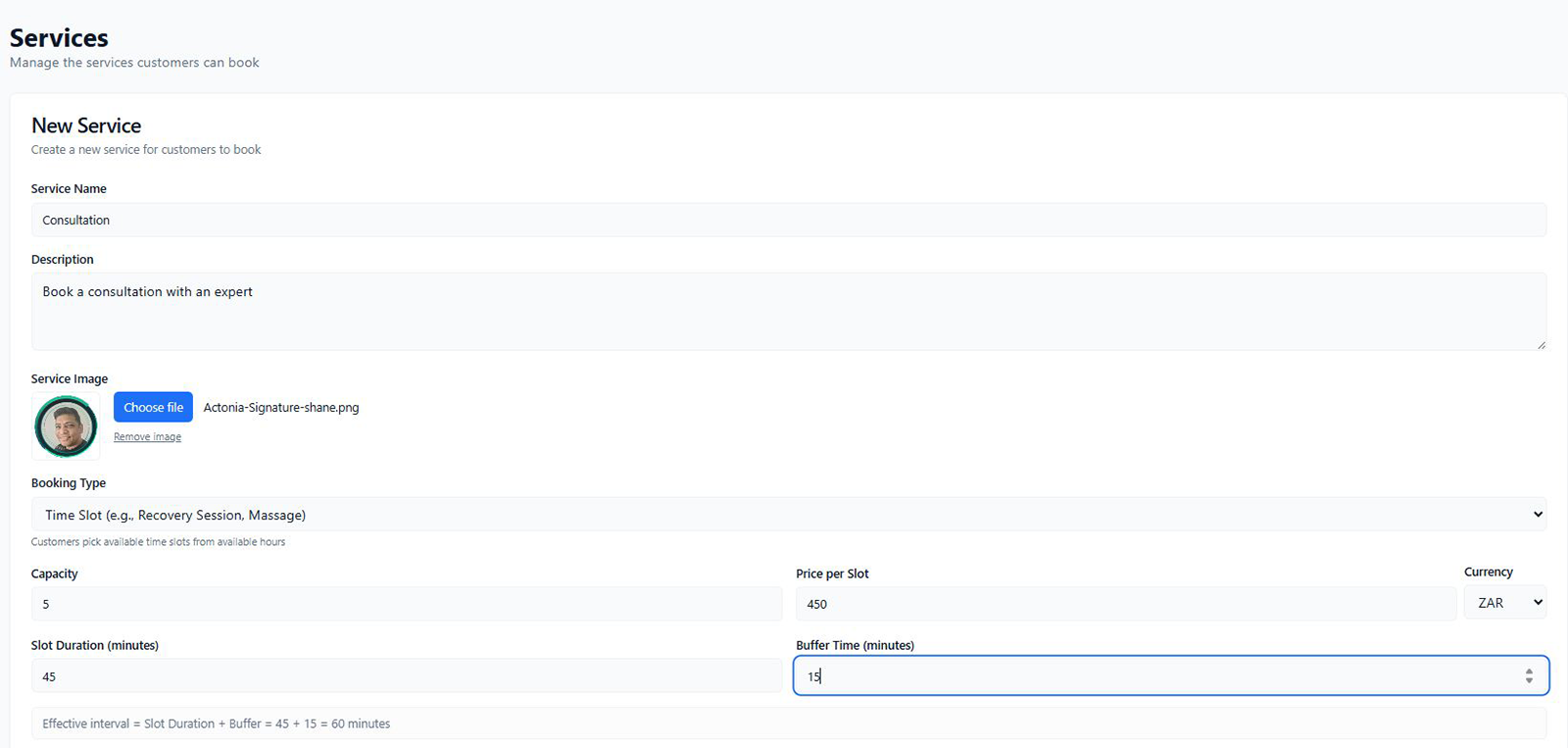
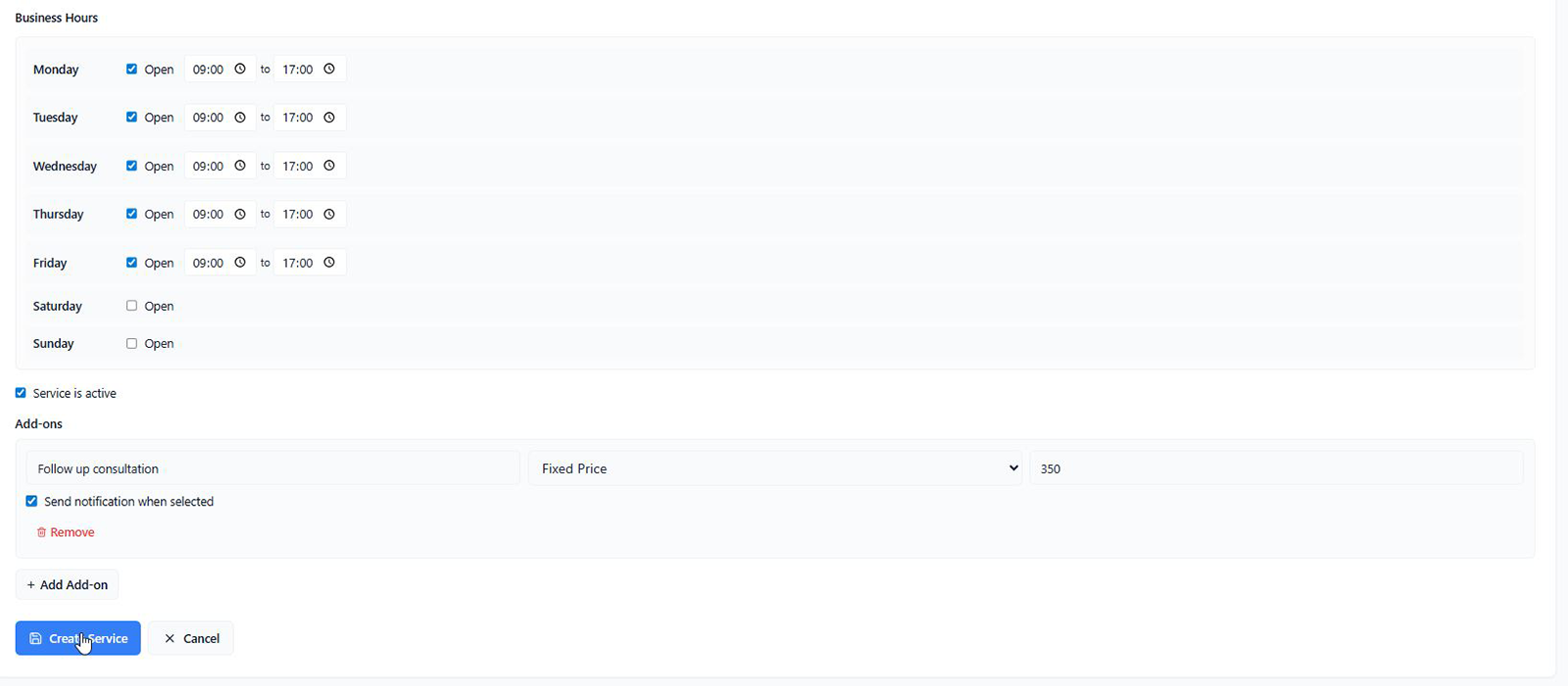
Ready to offer something new? Click the primary blue + Add Service button in the top right corner. This allows you to build a new offering from scratch, whether it is a quick 15-minute consultation, a 2-hour salon treatment, or an all-day pass.
2. Review Your Service List
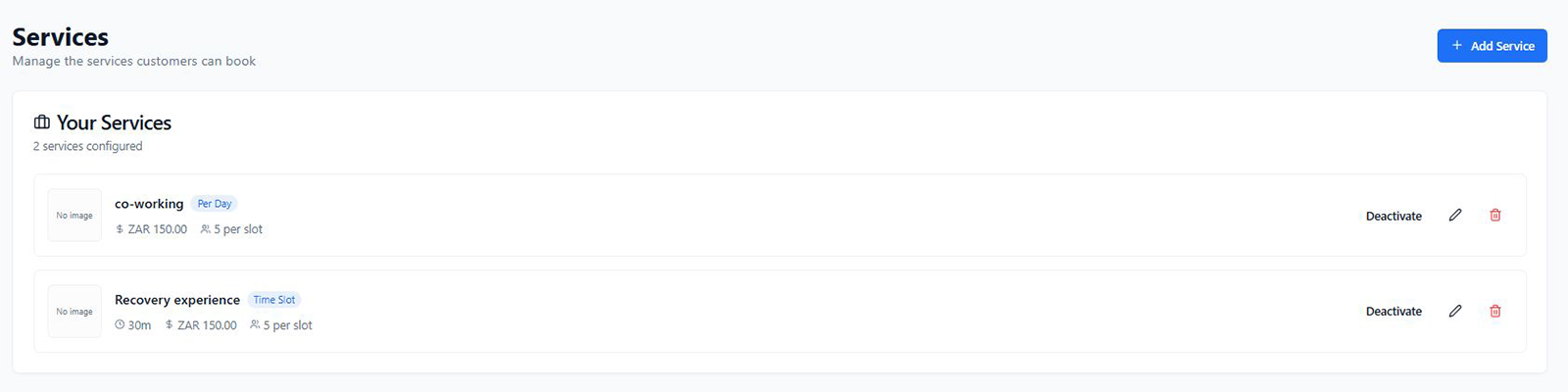
The "Your Services" section displays everything your clients can currently book. At a glance, you can verify the most important details for each offering:
- Booking Type: Notice the blue badges next to your service names. You can offer Time Slot bookings (like a 30-minute "Recovery experience") or Per Day bookings (like "co-working").
- Duration & Price: Ensure your clients know exactly what to expect. You will see the time commitment (e.g., 30m) and the cost (e.g., ZAR 150.00) clearly listed.
- Capacity: Do you run group sessions? The person icon shows your capacity limit (e.g., "5 per slot"), ensuring you never overbook a class or shared space.
3. Manage and Update Quickly
Business changes, and your services should too. On the right side of every service, you have three quick actions:
- Deactivate: Temporarily hide a service from your booking widget without deleting it entirely (perfect for seasonal offerings).
- Edit (Pencil Icon): Need to raise your prices or change a description? Click here to tweak the details.
- Delete (Trash Icon): Permanently remove an old service you no longer offer.