Booking widget preview
Use this customer-facing screen as the reference for what clients will see during booking.
- Last updated: March 31, 2026
- Reading time: 4 minutes
- Difficulty: Beginner
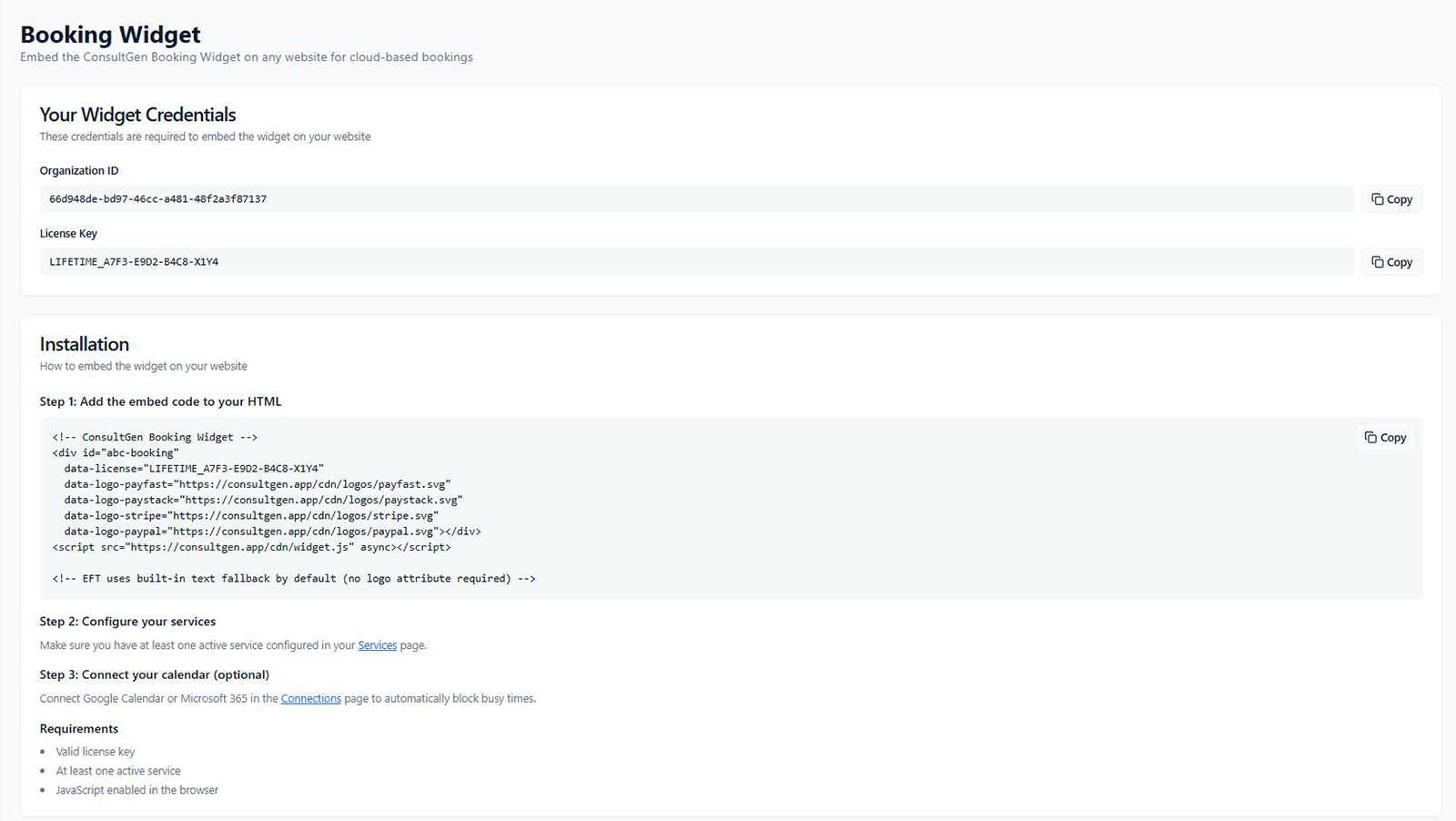
Why this matters: The ConsultGen booking widget is the customer-facing entry point for your appointment scheduling software. It is the form clients use to book directly from your website, and it is what turns visitors into confirmed appointments. Before going live, you need two things in place: your widget credentials and the embed code installed on your site.
This guide covers everything on the Widget screen — your unique credentials, the embed snippet, and the installation steps required to start accepting bookings.
Your widget credentials
The credentials section shows the two values that tie your widget to your ConsultGen account. Both are required for the widget to load and accept bookings.
- Organization ID — your unique account identifier. This tells the widget which organization's services and availability to display.
- License Key — your subscription license token. The widget validates this on load to confirm your plan is active.
Use the Copy button next to each field to copy the value cleanly without errors. Do not type these credentials manually into your embed code.
Step 1: Add the embed code to your HTML
Paste the following snippet into any page on your website where you want the booking form to appear.
<!-- ConsultGen Booking Widget -->
<div id="abc-booking"
  data-license="YOUR_LICENSE_KEY"
  data-logo-payfast="https://consultgen.app/cdn/logos/payfast.svg"
  data-logo-paystack="https://consultgen.app/cdn/logos/paystack.svg"
  data-logo-stripe="https://consultgen.app/cdn/logos/stripe.svg"
  data-logo-paypal="https://consultgen.app/cdn/logos/paypal.svg"></div>
<script src="https://consultgen.app/cdn/widget.js" async></script>

<!-- EFT uses built-in text fallback by default (no logo attribute required) -->
Key points about this snippet:
data-license— replace the placeholder with your actual License Key copied from the credentials section above.data-logo-*— these attributes add payment gateway logo icons to the widget's payment step. Include only the gateways you have configured in your account settings. Remove anydata-logo-*attribute for a gateway you are not using.- EFT does not require a logo attribute. The widget displays a built-in text label for EFT by default.
asyncon the script tag — loads the widget without blocking the rest of your page. Do not remove this.- Use the Copy button in the widget screen to get your pre-filled snippet with your actual license key already inserted.
Step 2: Configure your services
Before the widget can display bookable options, you must have at least one active service configured in ConsultGen.
- Go to the Services page and confirm at least one service is active.
- The widget automatically pulls your active services and shows them in the booking flow.
- If no services are active, the widget will load but clients will see no bookable options.
Step 3: Connect your calendar (optional)
Connecting Google Calendar or Microsoft 365 via the Connections page allows ConsultGen to automatically block out times when you are already busy.
- Without a calendar connection, the widget shows availability based on your configured business hours only.
- With a calendar connection, existing events in your personal calendar block those slots from appearing as available in the widget.
- This is the most reliable way to prevent double-bookings.
Requirements
The widget will not function correctly unless all three requirements are met:
- Valid license key — your ConsultGen plan must be active. An expired or invalid key will prevent the widget from loading.
- At least one active service — the widget needs a bookable service to display. Configure services before publishing the widget.
- JavaScript enabled in the browser — the widget is JavaScript-powered. Clients using browsers with JavaScript disabled will not see it.
Where to place the embed code
You can place the widget on any page that supports HTML. Common placements:
- A dedicated Book Now or Appointments page.
- Your homepage, below the hero section or service list.
- A contact or enquiry page alongside your phone number and email.
For WordPress sites, paste the snippet into a Custom HTML block in the page editor, or use the ConsultGen WordPress plugin which handles embedding automatically.
Common questions
What happens if I use the wrong license key? The widget will fail to load or display an error. Copy the key directly from the Widget screen to avoid typos.
Can I embed the widget on multiple pages? Yes. The same snippet can be placed on multiple pages. Each instance loads independently.
Do I need to re-embed after updating services? No. The widget always fetches the latest active services from your account at load time. No changes to the embed code are needed when you add or update services.
The widget is not showing on my site — what should I check? Confirm:
- The license key in the snippet matches your License Key exactly,
- At least one service is active,
- The script tag is present and has the
asyncattribute, - No browser extensions are blocking third-party scripts.